


 Michał Trybulec
SQL Server Analysis Services (SSAS) remains a critical part of many enterprise analytics architectures. Whether deployed in Tabular or Multidimensional mode, Analysis Services often acts as the semantic layer that standardizes metrics, calculations, and business logic across reporting tools.
Power BI integrates natively with Analysis Services, allowing teams to build interactive reports directly on top of centrally governed models-without duplicating data or re-implementing business logic. However, as usage grows, organizations quickly face new challenges:
- Which reports use which SSAS models?
- Where does a measure come from and how is it calculated?
- Who owns the model and approves changes?
- What breaks if a dimension or measure is modified?
This guide explains how to connect Analysis Services to Power BI step by step, and then shows how to document and govern that integration using Dataedo-covering models, measures, lineage, and ownership.
Why Use Analysis Services with Power BI?
Connecting Power BI to Analysis Services allows organizations to clearly separate semantic modeling from report development. Analysis Services becomes the centralized layer where business logic, KPIs, and security rules are defined once and reused consistently, while Power BI focuses on visualization and user-driven analysis.
In practice, this architecture brings several tangible benefits:
- Reuse of a central semantic model across many reports, ensuring that KPIs such as revenue or margin are calculated consistently.
- Standardized calculations and metrics, eliminating discrepancies between reports built by different teams.
- Centralized security management, where role-based access is enforced at the model level and automatically applied to all reports.
- Reduced data duplication and refresh overhead, since Power BI queries the model live instead of importing data.
- Clear separation of responsibilities, with semantic modeling owned by BI or data teams and reporting handled by analysts.
In mature BI environments, this approach establishes Analysis Services as the single source of truth, with Power BI acting as a flexible consumption layer.
Connection Modes: Live Connection vs Import
Before connecting Power BI to Analysis Services, it’s important to choose the appropriate connectivity mode. This decision has a direct impact on governance, performance, and how much flexibility report authors will have.
Live Connection
With Live Connection, Power BI sends queries directly to Analysis Services at report runtime. No data or calculations are duplicated in Power BI.
Key advantages include:
- No data duplication between SSAS and Power BI
- Centralized business logic (DAX / MDX) reused across reports
- Security fully enforced by Analysis Services roles
- Always up-to-date results
Trade-offs to consider:
- The semantic model cannot be modified in Power BI
- Limited ability to extend calculations at the report level
Best for:
Enterprise semantic models, certified datasets, and governed BI environments where consistency matters more than flexibility.
Import Mode (via Tabular Model)
In some scenarios, organizations choose to import data from an SSAS Tabular model into Power BI. This gives report authors more freedom but reduces central control.
Benefits include:
- High-performance visuals
- Full DAX flexibility inside Power BI
However, this comes at a cost:
- Duplicated logic and data
- Separate refresh cycles
- Increased risk of KPI drift over time
Best for:
Exploratory analysis, isolated use cases, or scenarios where governance is less critical.
Step-by-Step: Connect Analysis Services to Power BI
Prerequisites
Before you start, make sure you have:
- Access to an SSAS instance (server name, database/model)
- Permissions to read the model (and roles if applicable)
- Power BI Desktop (latest version)
- On-premises Data Gateway (for Power BI Service refresh / access)
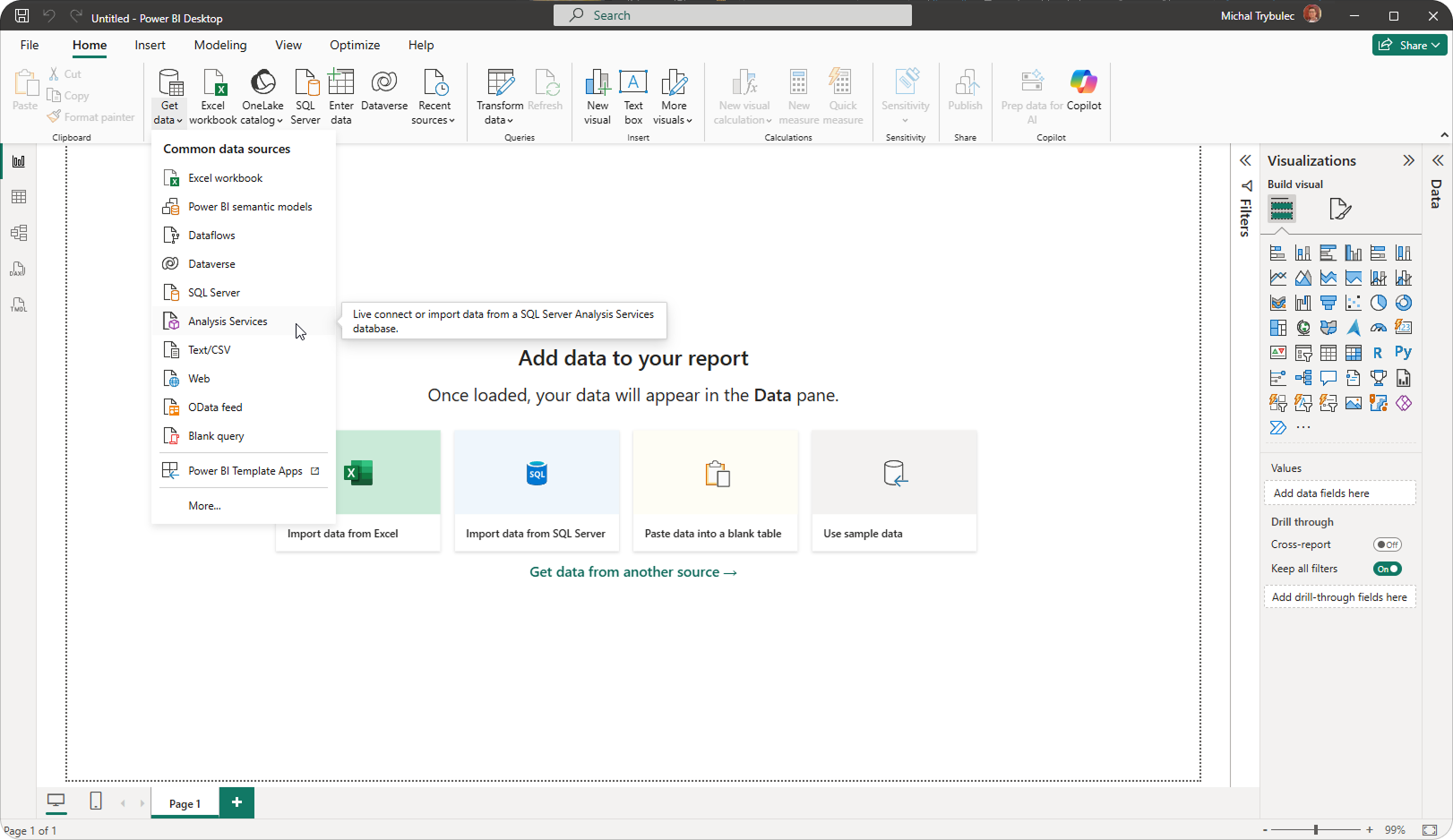
Step 1: Open Power BI Desktop
- Launch Power BI Desktop
- Select Get Data
- Choose SQL Server Analysis Services database
Step 2: Enter Connection Details
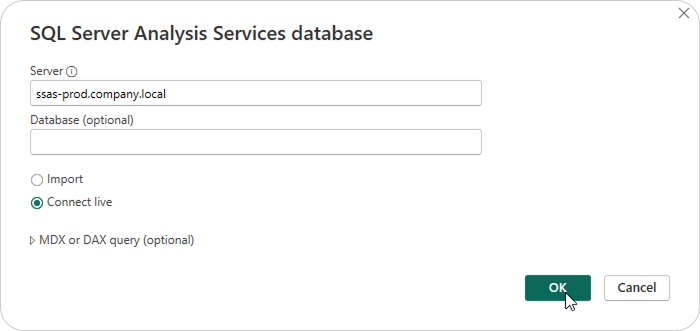
Provide:
- Server:
- Example: ssas-prod.company.local
- Database (optional):
- Leave blank to browse available models
Choose Live Connection.
Click OK.
Step 3: Authenticate
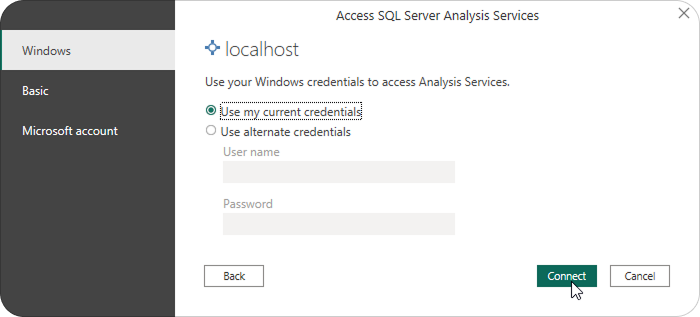
Authenticate using one of the supported methods:
- Windows authentication
- Basuc (with login and password)
- Microsoft account
Once connected, Power BI loads the model metadata (tables, measures, hierarchies).
Step 4: Select a Model in the Navigator
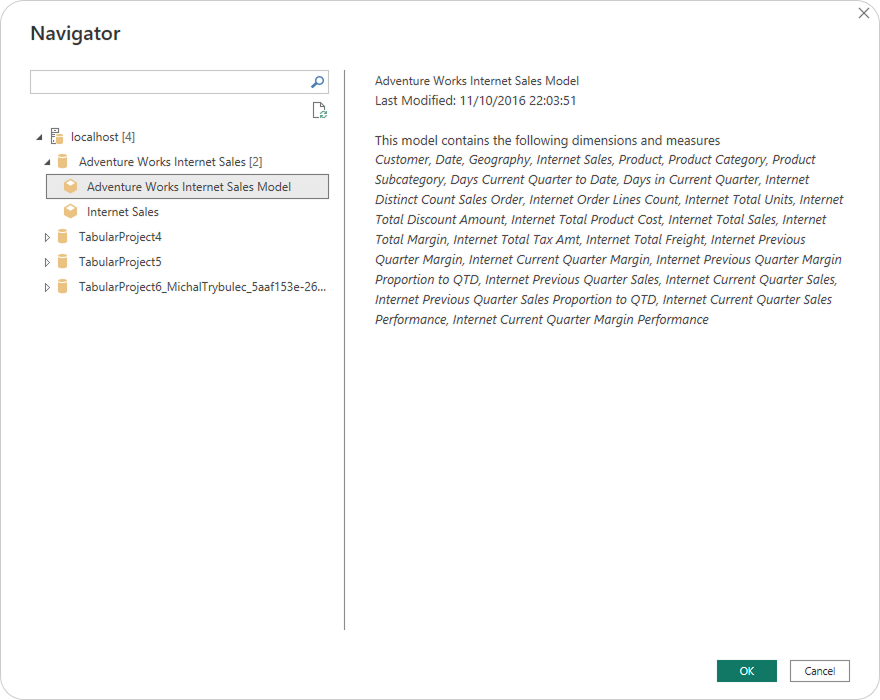
After connecting, Power BI displays the Navigator window with all accessible Analysis Services databases and models.
At this stage:
- Select the semantic model you want to use
- Review available tables, measures, and hierarchies (read-only)
- Confirm the selection and click OK
This step defines which Analysis Services model your Power BI report will be built on.
Step 5: Build Reports Using Live Connection
With the model selected, Power BI opens the report canvas.
In Live Connection mode:
- Tables, measures, and hierarchies appear as read-only
- All calculations and business logic come directly from Analysis Services
- Security (roles and permissions) is enforced by SSAS
- No data is imported into Power BI
You can now build visuals and dashboards without re-implementing logic or duplicating calculations.
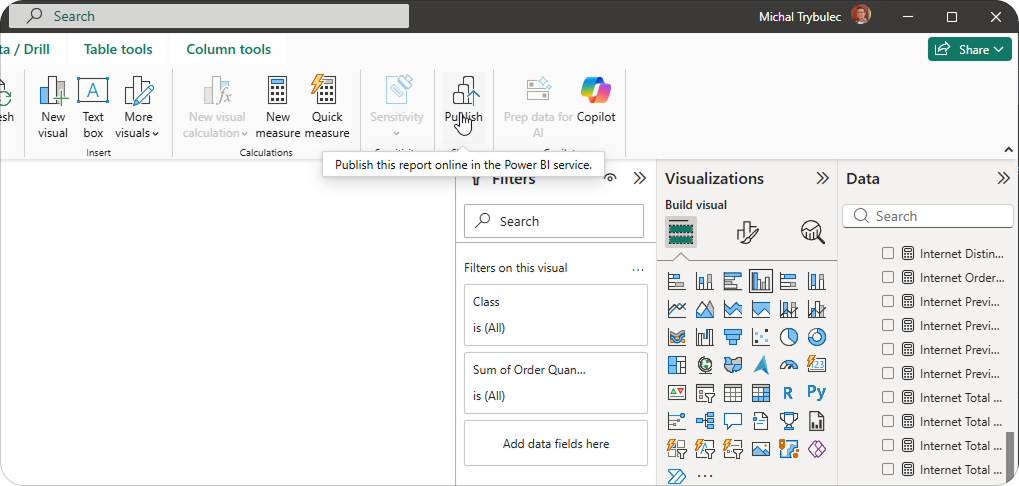
Step 6: Publish to Power BI Service
Once the report is ready:
- Publish the report to a Power BI workspace
- Configure the On-premises Data Gateway (if required)
- Ensure the gateway user has access to the Analysis Services model
At this point, the technical connection is complete - but this is usually where documentation, lineage, and governance questions begin, especially as more reports and users depend on the same semantic model.
Common Challenges After Connecting SSAS to Power BI
As more teams and users start building reports on top of the same Analysis Services model, complexity increases. What initially feels like a clean, centralized setup can quickly become difficult to manage without proper visibility.
Organizations commonly encounter challenges such as:
- Dozens of reports built on the same SSAS model, with no easy way to see who depends on what.
- Measures reused inconsistently, sometimes with different interpretations across reports.
- Unclear ownership of models and KPIs, making change approval difficult.
- Limited impact analysis, especially before modifying a dimension or measure.
- Higher risk of breaking downstream reports, even with small semantic model changes.
These issues are not technical limitations of SSAS or Power BI - they are governance and documentation gaps.
What Should Be Documented for Analysis Services in Power BI?
To operate Analysis Services and Power BI at scale, documentation must go beyond simple technical metadata. It should explain purpose, ownership, and usage in a way that both technical and business users can understand.
A complete documentation scope includes:
Analysis Services models
- Business purpose and domain context
- Model owner and steward
- Source systems and refresh logic
Tables and columns
- Business meaning and grain
- Intended analytical usage
- Sensitivity and classification
Measures
- Business definition in plain language
- Explanation of calculation logic
- Visibility into report usage
Roles and security
- Who sees what
- Business intent behind access rules
Power BI reports
- Which reports use which models
- Which measures appear in key visuals
This information should be centralized, searchable, and continuously aligned with the actual technical implementation.
How Dataedo Helps Document Analysis Services + Power BI
Dataedo provides a metadata and lineage layer that sits on top of both Analysis Services and Power BI. Instead of replacing these tools, it connects them and makes their relationships visible and understandable.
What Dataedo captures automatically
- Analysis Services models, tables, columns, and measures
- Power BI reports and datasets
- Dependencies between models, measures, and reports
What teams can add on top
- Business descriptions and glossary terms
- Ownership, stewardship, and certification status
- Sensitivity labels and usage notes
By combining automated extraction with curated business context, Dataedo turns a technical semantic layer into a governed analytics asset.
1. Document Analysis Services Models
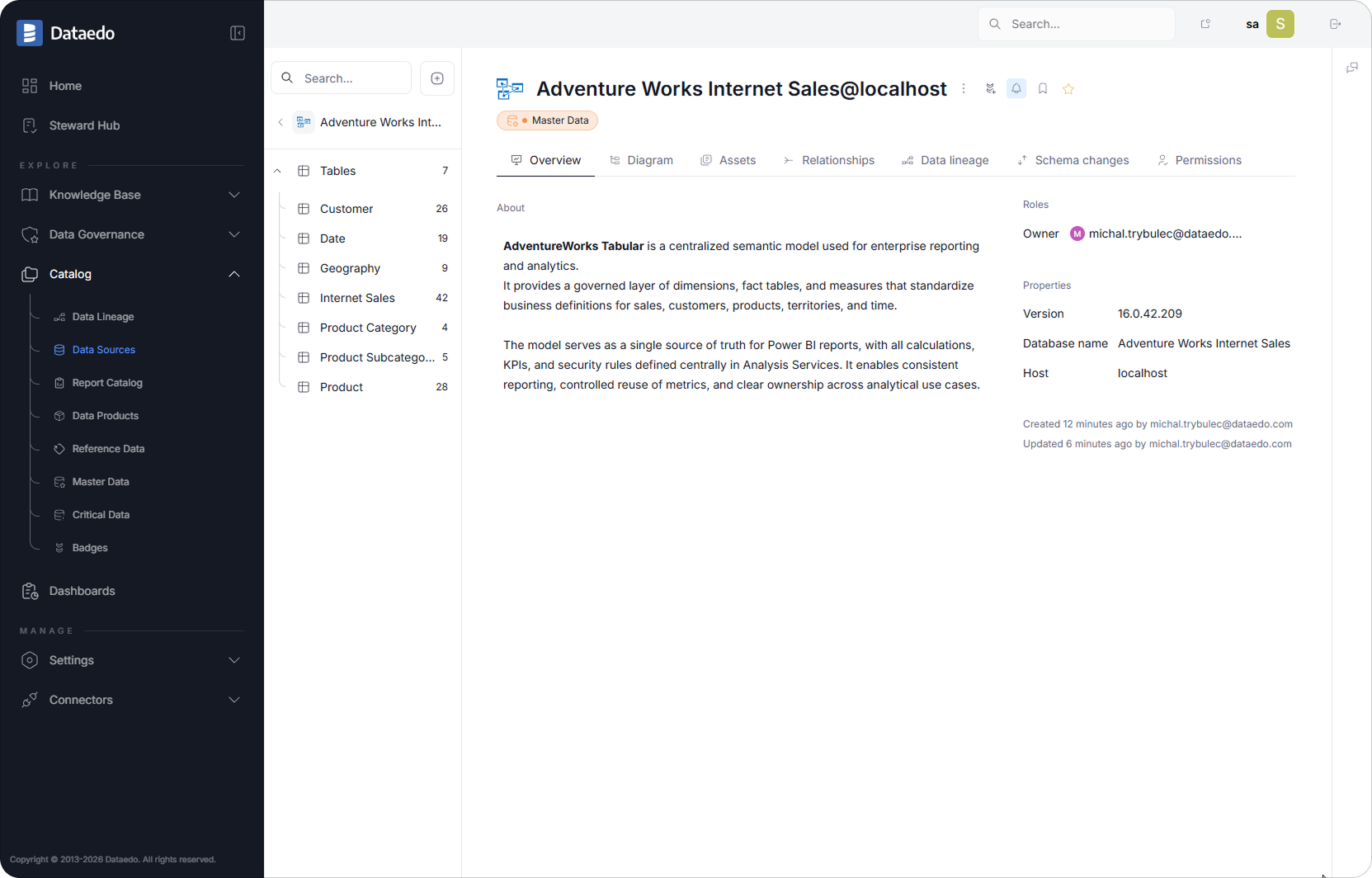
Analysis Services models are the foundation of enterprise reporting, but without documentation they quickly become opaque. Dataedo imports metadata directly from Analysis Services, capturing the full structure of each semantic model, including tables, columns, measures, and hierarchies.
Once imported, each object can be enriched with additional context:
- business descriptions that explain purpose and usage
- ownership and stewardship to clarify accountability
- data domains to organize models by subject area
- sensitivity labels for governance and compliance
This ensures that semantic models are no longer just technical artifacts, but clearly described assets that business users and analysts can understand and trust.
2. Document Measures and Business Logic
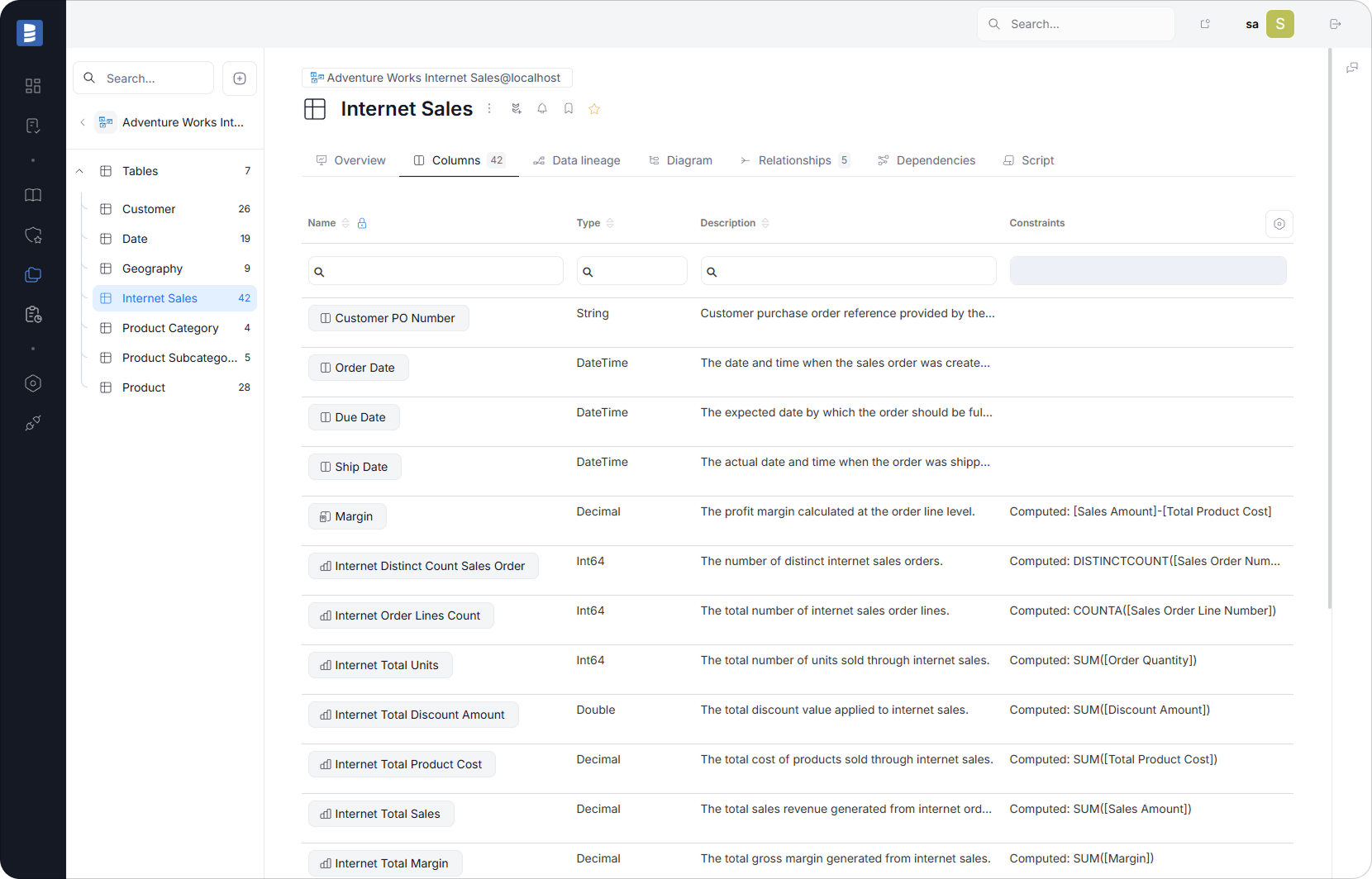
Measures are often the most valuable-and most fragile-part of an Analysis Services model. They encapsulate business rules, KPIs, and calculations that are reused across many reports.
With Dataedo, teams can document measures in a structured and consistent way:
- describing the business purpose of each measure in plain language
- explaining calculation logic without requiring users to read DAX
- grouping measures by domain, such as Finance, Sales, or Operations
- linking measures to business glossary terms
This documentation reduces ambiguity, prevents KPI drift, and helps ensure that the same metric means the same thing across all reports and teams.
3. Lineage: Analysis Services → Power BI Reports
As soon as multiple reports rely on the same semantic model, understanding dependencies becomes critical. In practice, however, lineage rarely starts at the semantic layer itself. To fully understand the impact of changes, teams also need visibility into how Analysis Services models are populated and transformed upstream.
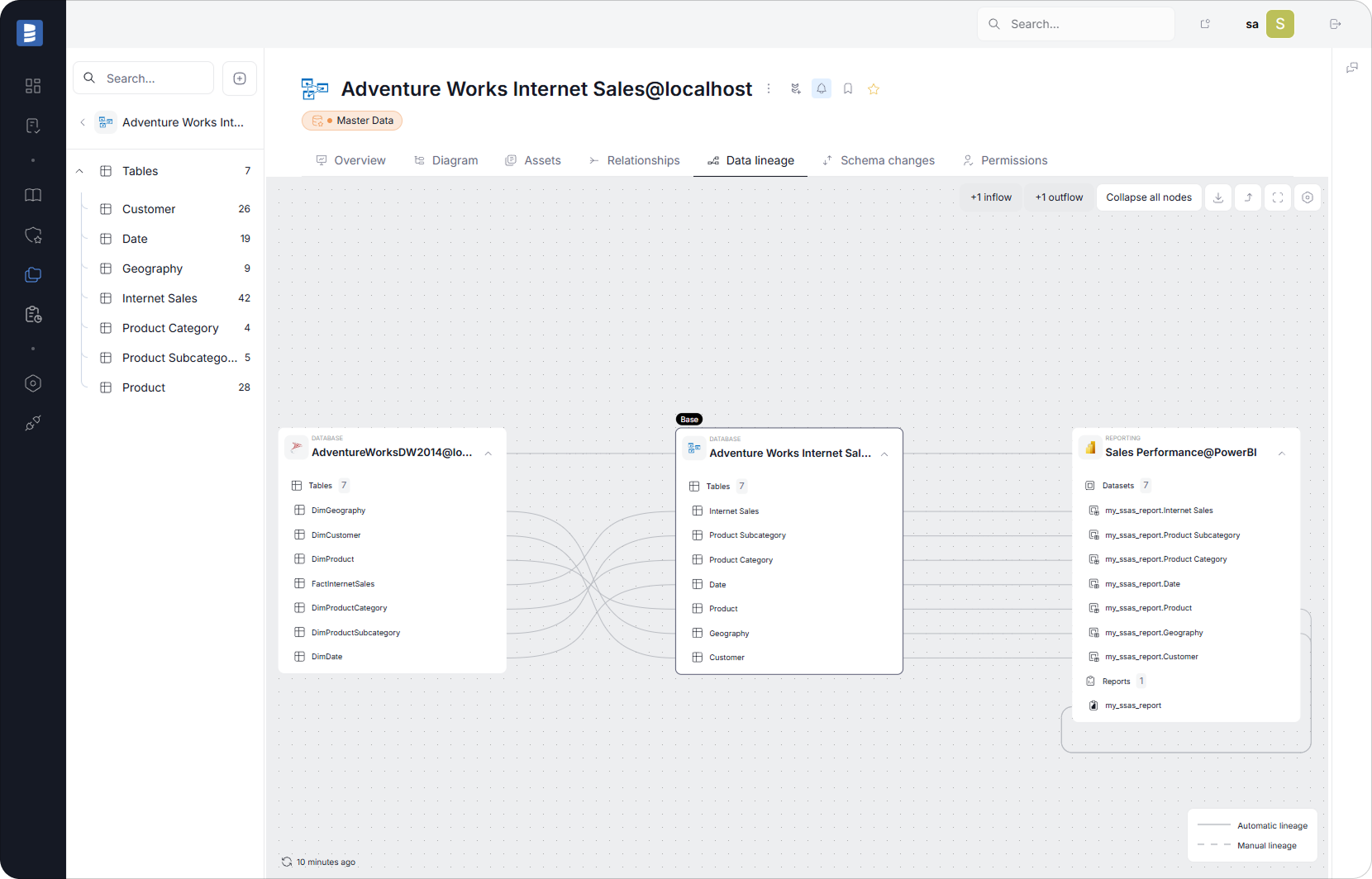
Dataedo builds extended lineage that goes beyond the semantic model and shows how data flows into Analysis Services and out to Power BI. Instead of stopping at measures and reports, lineage connects the entire pipeline-from source systems and ETL processes to the final dashboard.
This lineage clearly illustrates the full flow:
Source systems / databases → ETL processes → Analysis Services tables & measures → Power BI datasets → reports
With this end-to-end visibility, teams can easily answer questions such as:
- Which source tables and ETL processes feed this SSAS measure?
- Which Analysis Services model and measure is behind a specific dashboard?
- Which Power BI reports depend on this calculation?
- What will be affected if a source column, ETL transformation, or measure definition changes?
By covering both upstream data flows and downstream report usage, lineage transforms impact analysis from a manual, error-prone exercise into a fast, reliable, and repeatable process-supporting safer changes across the entire analytics stack.
4. Business Glossary Integration
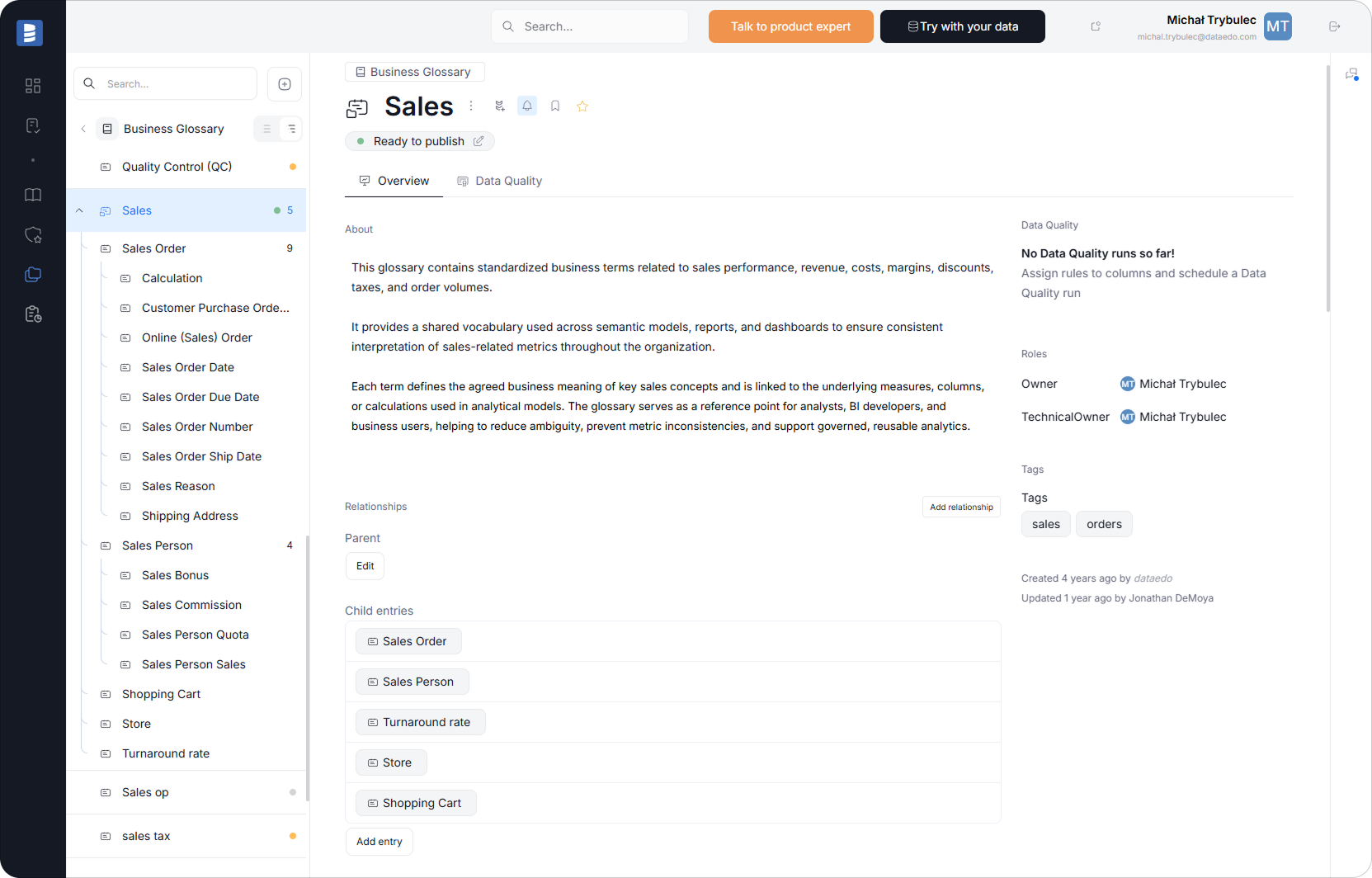
A shared business language is essential for scalable analytics, especially in sales and commercial reporting. Dataedo allows organizations to define standardized business terms that reflect how sales processes, orders, and performance metrics are actually understood and reported within the organization, and to link those terms directly to technical assets.
Examples of glossary terms in the Sales domain include concepts such as Sales Order, Online Sales Order, Customer Purchase Order Number.
Glossary terms can be associated with:
- SSAS measures, such as sales totals, commissions, or performance KPIs
- model columns, for example order dates, order numbers, or shipping attributes
- Power BI visuals, where business users consume these metrics and attributes
By linking business terms to the exact columns, measures, and visuals used in reports, Dataedo ensures that sales-related definitions are applied consistently across the semantic layer and the reporting layer. This reduces misunderstandings, prevents inconsistent interpretations of sales data, and helps align business and technical teams around a shared understanding of key sales concepts.
5. Governance, Ownership & Context
Beyond documentation, Dataedo supports governance by making responsibility and context explicit. For each semantic model or key metric, teams can capture:
- model owners and stewards
- certification or endorsement status
- refresh expectations and operational notes
- usage context and limitations
This governance layer transforms Analysis Services and Power BI from a purely technical setup into a managed analytics ecosystem with clear accountability.
Example Scenario: Measure Change Impact
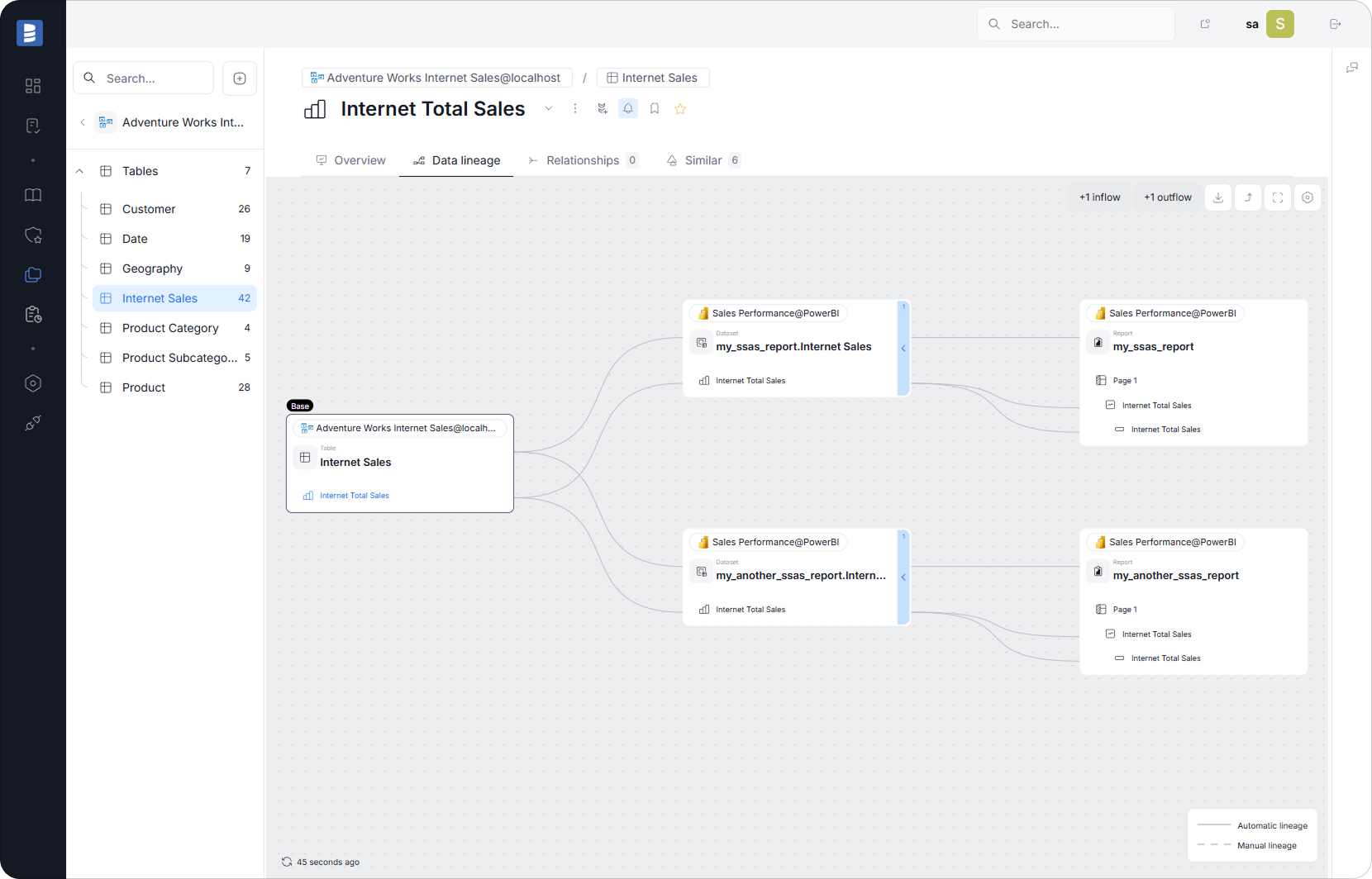
Consider a finance team planning to modify the Internet Total Sales calculation. Without lineage and documentation, assessing the impact of this change would require manual investigation and assumptions.
With Dataedo, the team can immediately see:
- the definition of the SSAS measure
- all Power BI reports that use it
- the associated business glossary definition
- the model owner responsible for approving the change
As a result, changes become controlled, transparent, and safe to implement.
Why Documentation Matters Even More with Live Connections
When Power BI uses Live Connection, reports depend entirely on the semantic model. A single change in Analysis Services can affect dozens of dashboards instantly. While centralization improves consistency, it also concentrates risk.
Documentation and lineage are what make this centralized architecture scalable. They provide the visibility and confidence needed to evolve semantic models without disrupting downstream users.
Summary: From Connection to Governance
Connecting Analysis Services to Power BI is technically straightforward, but operating this architecture at scale requires much more than a working connection.
Successful teams rely on:
- clear documentation of semantic models and measures
- lineage from the semantic layer to Power BI reports
- shared business definitions
- visible ownership and governance
Dataedo provides the missing layer that connects Analysis Services and Power BI into a transparent, trusted, and governed analytics ecosystem.
Next Steps
Document your Analysis Services models, trace lineage to Power BI reports, and standardize KPI definitions with Dataedo.
Book a demo or start a free trial to see how Dataedo brings clarity and control to your semantic and BI layers.