


 Michał Trybulec
Connecting Oracle to Power BI allows you to bring enterprise-grade data into interactive dashboards and reports. Whether your Oracle instance runs on-premises or in the cloud, Power BI offers a native Oracle connector that supports both Import and DirectQuery modes.
In this guide, you’ll learn step by step how to connect Power BI to Oracle Database, configure authentication, choose the right connection mode, optimize performance, and troubleshoot common issues. We’ll also show how Dataedo helps document Oracle schemas, map lineage to Power BI, and build governed analytics across teams.
Power BI and Oracle Connection Modes: Import vs. DirectQuery
When integrating Oracle with Power BI, your first choice is the data connectivity mode. This determines how Power BI retrieves data and how your reports behave at runtime.
Import Mode
Import mode copies Oracle data into Power BI’s internal model.
➕ Pros:
- Fast visuals and full DAX capabilities.
- Works offline and independent from live Oracle sessions.
➖ Cons:
- Requires scheduled refresh; potential data latency.
- Larger Power BI file sizes and memory footprint.
✅ Best for: Finance, historical analytics, periodic reporting, and dashboards using incremental refresh.
DirectQuery Mode
DirectQuery leaves data in Oracle and sends queries at view time.
➕ Pros:
- Near real-time analytics; no duplication of data.
- Smaller model size, better alignment with operational systems.
➖ Cons:
- Dependent on Oracle query performance and concurrency limits.
- Some DAX functions and transformations may be restricted.
✅ Best for: Operational dashboards, near real-time monitoring, and large data volumes requiring up-to-date insights.
Step-by-Step: Connect Power BI to Oracle
Connecting Power BI to Oracle Database is straightforward, but a few prerequisites are critical for a smooth setup. Follow these steps to configure a stable, secure, and optimized connection.
Prerequisites
Before you begin, ensure you have:
- Access to the Oracle server (hostname, port-typically 1521).
- Database name or service/SID.
- Login credentials (username and password, or SSO if enabled).
- Oracle client or driver installed: ODAC or Oracle Data Access Components matching your Power BI bit version (32-bit/64-bit).
- For DirectQuery or cloud refresh: a configured Power BI Gateway that can access the Oracle instance.
1. Open Power BI Desktop → Get Data → Oracle Database
- Launch Power BI Desktop.
- Go to Get Data → More... → Database → Oracle Database.
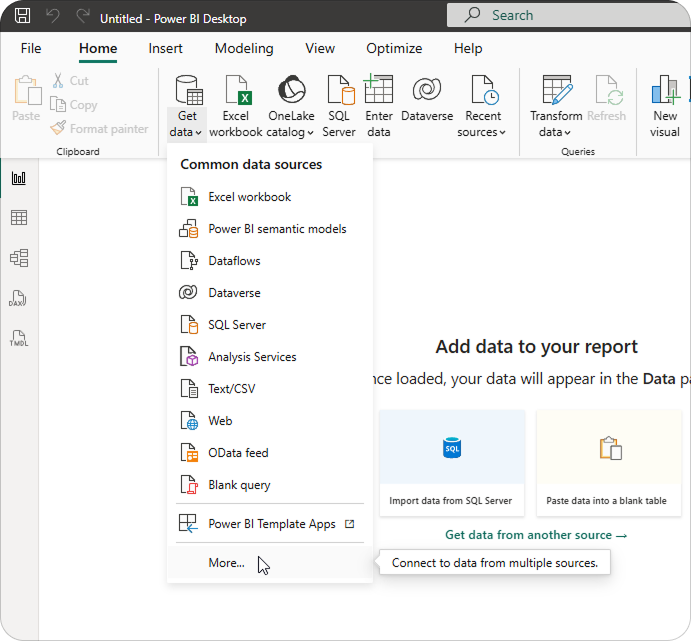
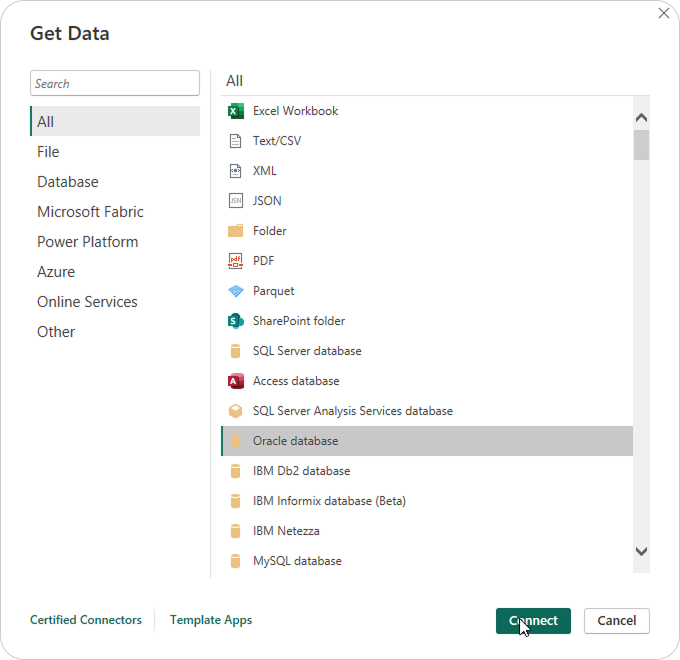
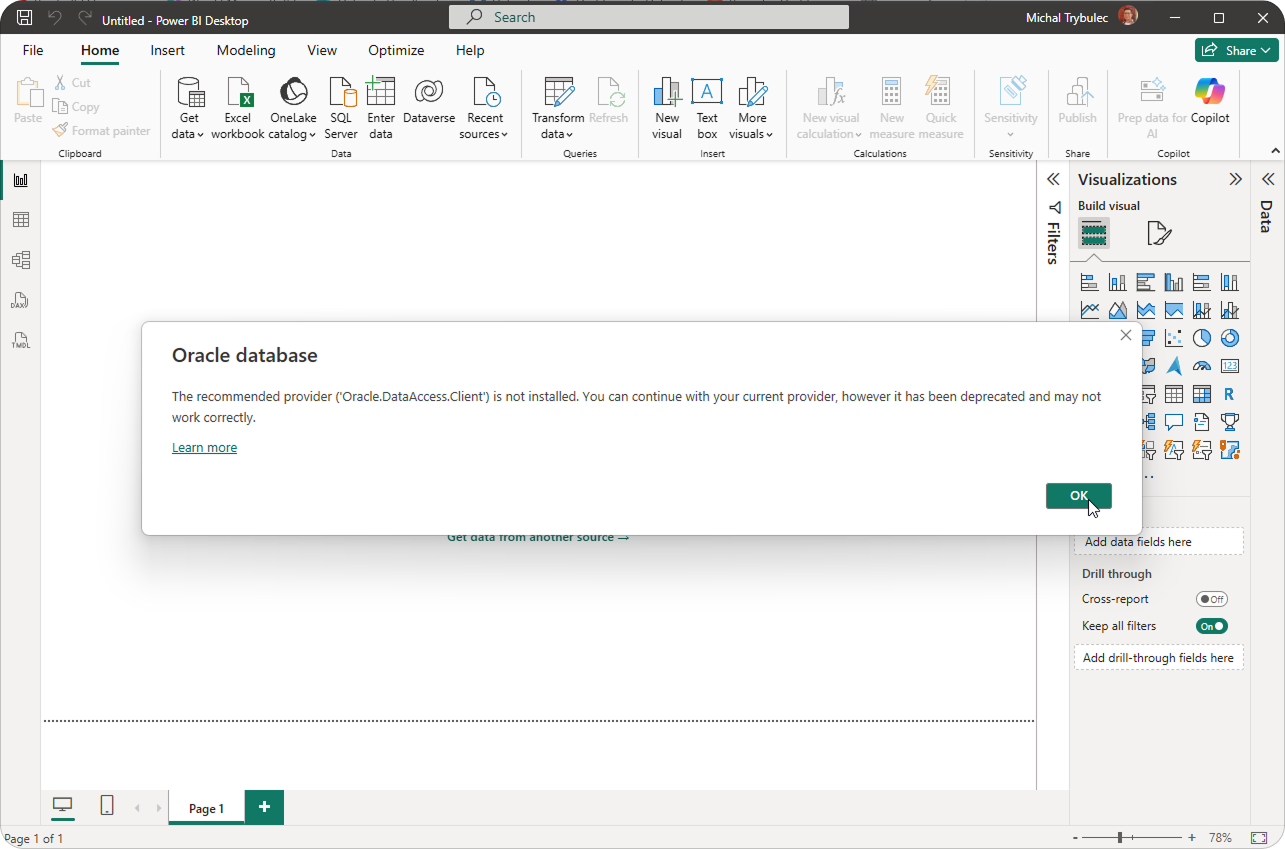
If you see the following message when trying to connect:
“The recommended provider (‘Oracle.DataAccess.Client’) is not installed. You can continue with your current provider, however it has been deprecated and may not work correctly.”
it means Power BI cannot find a compatible Oracle client or OLE DB/ODAC provider on your machine.
To fix this issue, you’ll need to install the correct Oracle client that matches your Power BI Desktop version (32-bit or 64-bit).
- Install the Oracle client that matches your Power BI Desktop version (32-bit or 64-bit).
- Follow Microsoft’s official guide:
Installing the Oracle client for Power BI
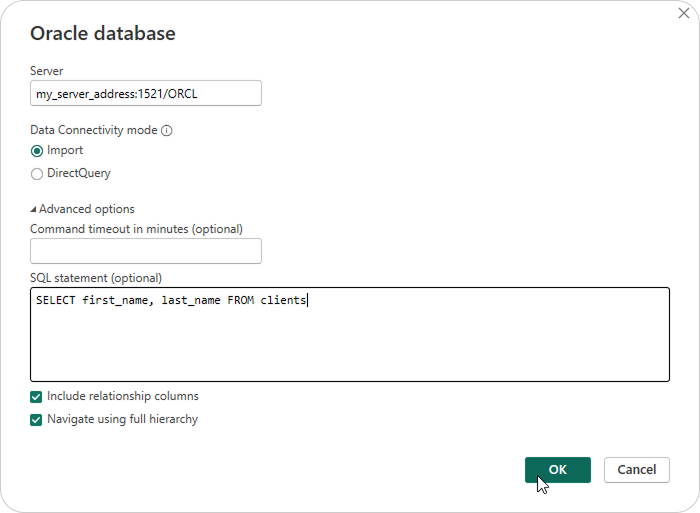
2. Enter Connection Details and Choose Data Connectivity Mode
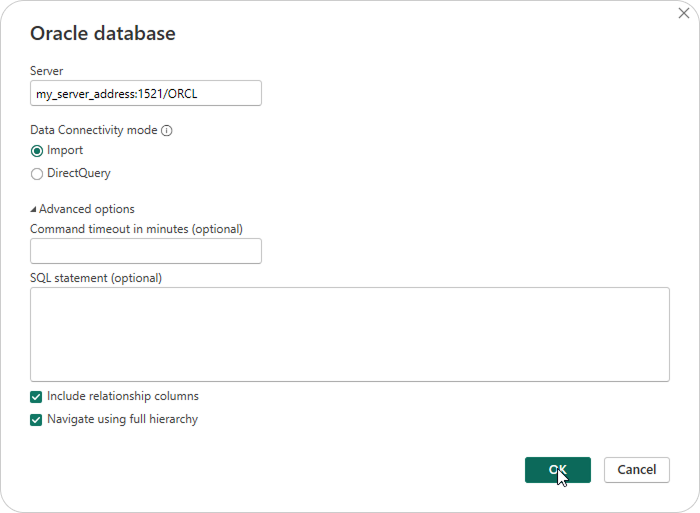
In the Oracle Database connection window:
- Enter your Oracle server address.
- Use the following syntax depending on your setup:
- hostname:port/ServiceName → e.g., oracle-prod.company.com:1521/ORCL
- or, if your organization uses TNS names, you can enter just the TNS alias (e.g., ORCLPROD).
- Use the following syntax depending on your setup:
- Select your Data Connectivity Mode:
- Import - Power BI copies the data from Oracle into its internal model.
Best for fast visuals, offline work, and scheduled refresh scenarios. - DirectQuery - Power BI leaves data in Oracle and runs queries in real time.
Best for live operational dashboards
- Import - Power BI copies the data from Oracle into its internal model.
- Click OK to continue.
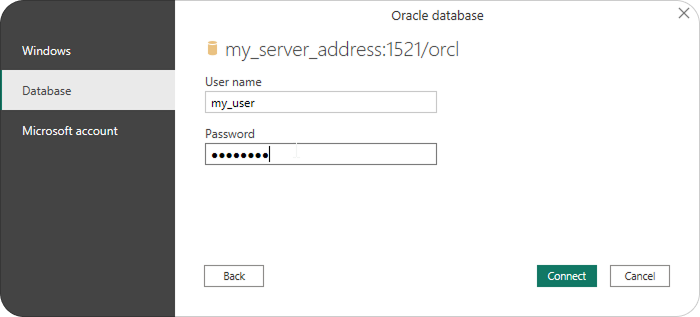
3. Authenticate
Sign in using one of the available methods:
- Database authentication - enter your Oracle username and password (most common).
- Windows authentication - use your current Windows credentials if your Oracle environment supports it.
- Organizational account - sign in with your Microsoft or SSO account if enabled.
If prompted, select Privacy Level (Organizational or Private) and click Connect.
4. Select Tables or Views
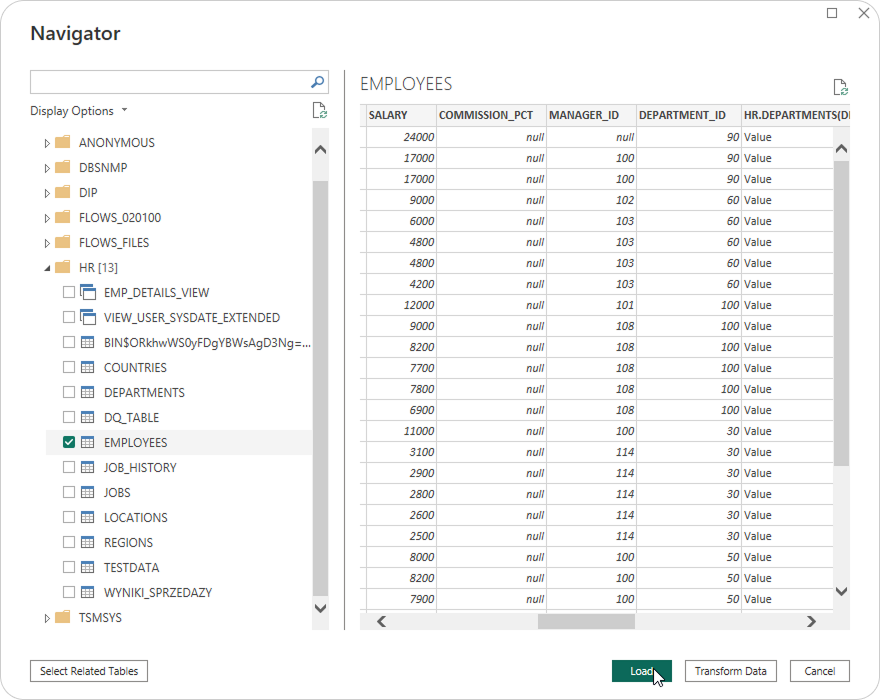
In the Navigator pane:
- Browse the available schemas.
- Select the required tables or views.
- Choose Load to import data, or Transform Data to clean and shape it first using Power Query.
Tip: You can also paste a native Oracle SQL query under Advanced options to load filtered or aggregated data directly from the source.
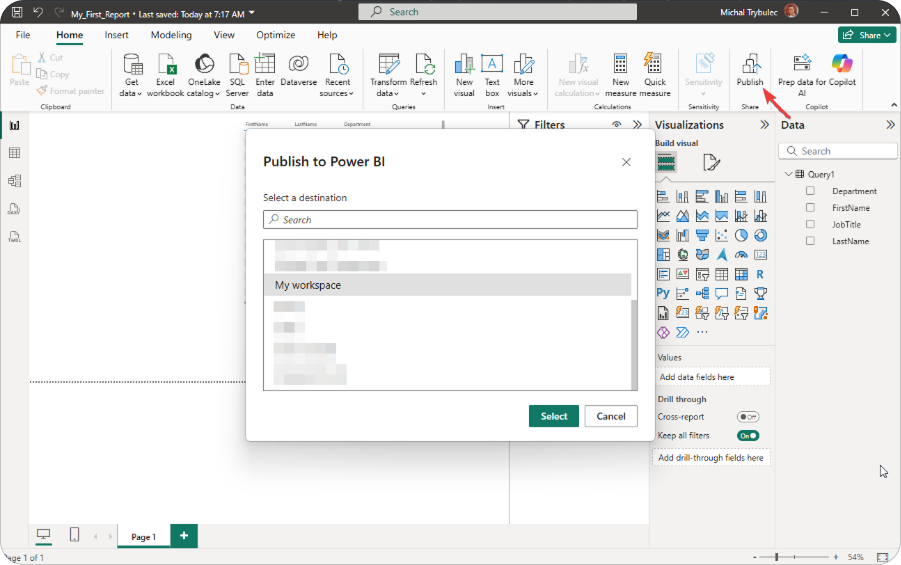
5. Publish to Power BI Service
Once your model and visuals are ready:
- Click Publish to send the report to your Power BI workspace.
Performance Optimization for Oracle Power BI Connections
Optimizing your Oracle-to-Power BI connection ensures faster queries, stable refreshes, and cost-efficient compute usage.
Best Practices
1. Query folding
- Use Power Query transformations that fold back into Oracle SQL (check “View Native Query”).
- Folding lets Oracle handle filtering, joins, and aggregations for better performance.
2. Filter early
- Restrict data at the source: use parameters (e.g., region, date range).
- Limit columns and rows to only what’s needed.
3. Leverage Oracle indexes and partitions
- Ensure proper indexing on join/filter columns.
- Partition large fact tables by date or business key to improve refresh performance.
4. Use materialized views and summary tables
- Pre-aggregate heavy queries in Oracle to minimize runtime workload.
5. Optimize data model design
- Follow a star schema in Power BI.
- Avoid unnecessary relationships or calculated columns that inflate memory usage.
Troubleshooting Oracle Power BI Connection Issues
Even with the correct configuration, connection errors can occur due to driver mismatches, permissions, or gateway setup.
Common Causes
- Driver mismatch: Oracle client version doesn’t match Power BI architecture (x64 vs x86).
- Network/firewall: Port 1521 blocked or TNS service unreachable.
- Invalid credentials or roles: Missing SELECT privileges or locked accounts.
- Gateway configuration: On-premises gateway not connected or mapped to Oracle data source.
- Query folding disabled: Power Query transformations breaking native SQL pushdown.
Diagnostics Checklist
- ✅ Can you connect using SQL Developer with the same credentials?
- ✅ Is the correct Oracle driver installed and registered on the Power BI machine/gateway?
- ✅ Does View Native Query appear for key Power Query steps (folding check)?
- ✅ Are Oracle listener and TNS names configured properly?
How Dataedo Helps with Oracle → Power BI Integration
Even a perfect connection isn’t enough if teams can’t understand the data behind it. That’s where Dataedo bridges the gap between Oracle databases and Power BI models-by providing documentation, glossary, and lineage visibility across the stack.
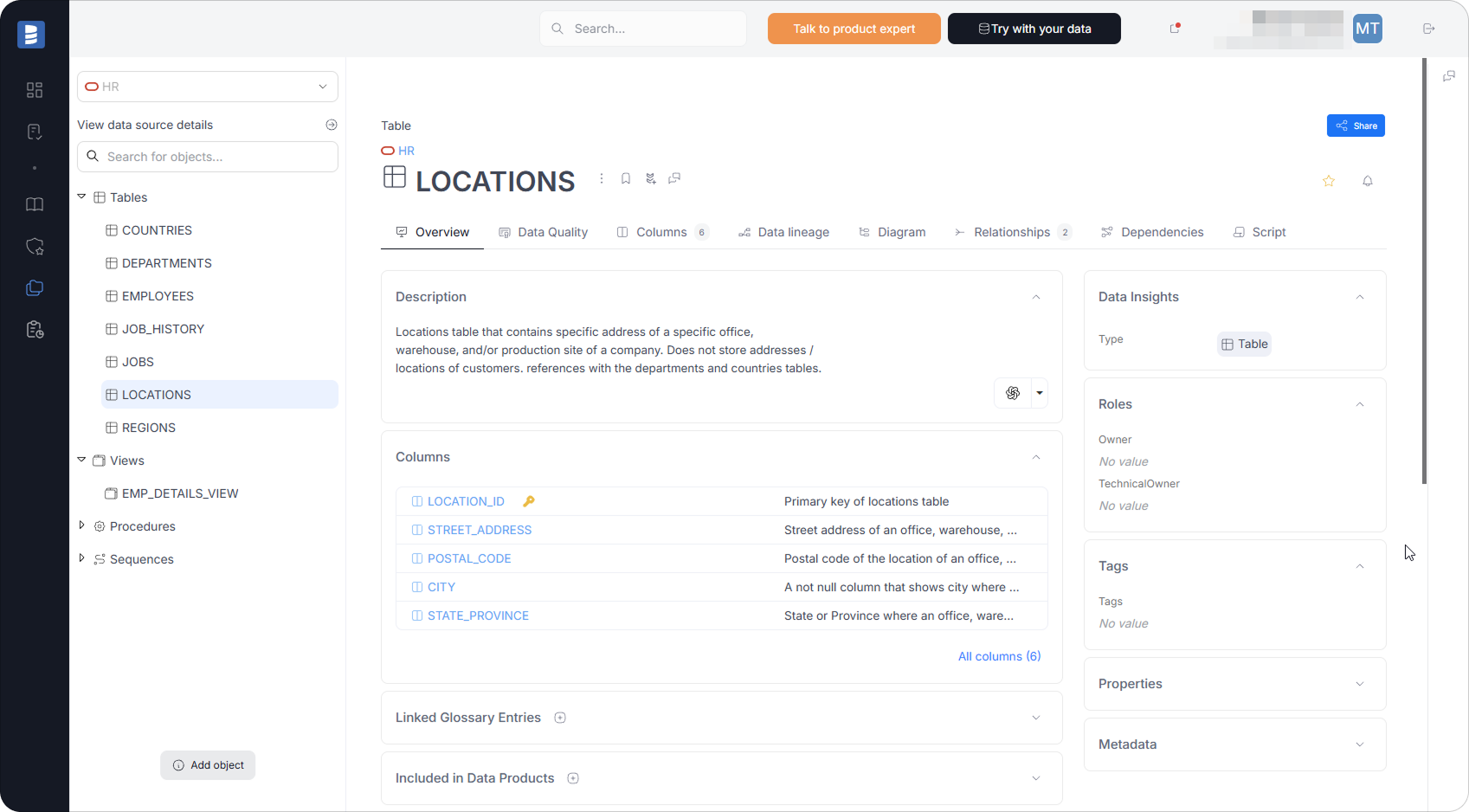
1. Document Oracle Schemas
Automatically scan and document Oracle schemas, tables, columns, PK/FK relationships, and views.
Add owners, descriptions, and tags to make your data assets understandable.
Benefits: clarity, faster onboarding, fewer mistakes in model design.
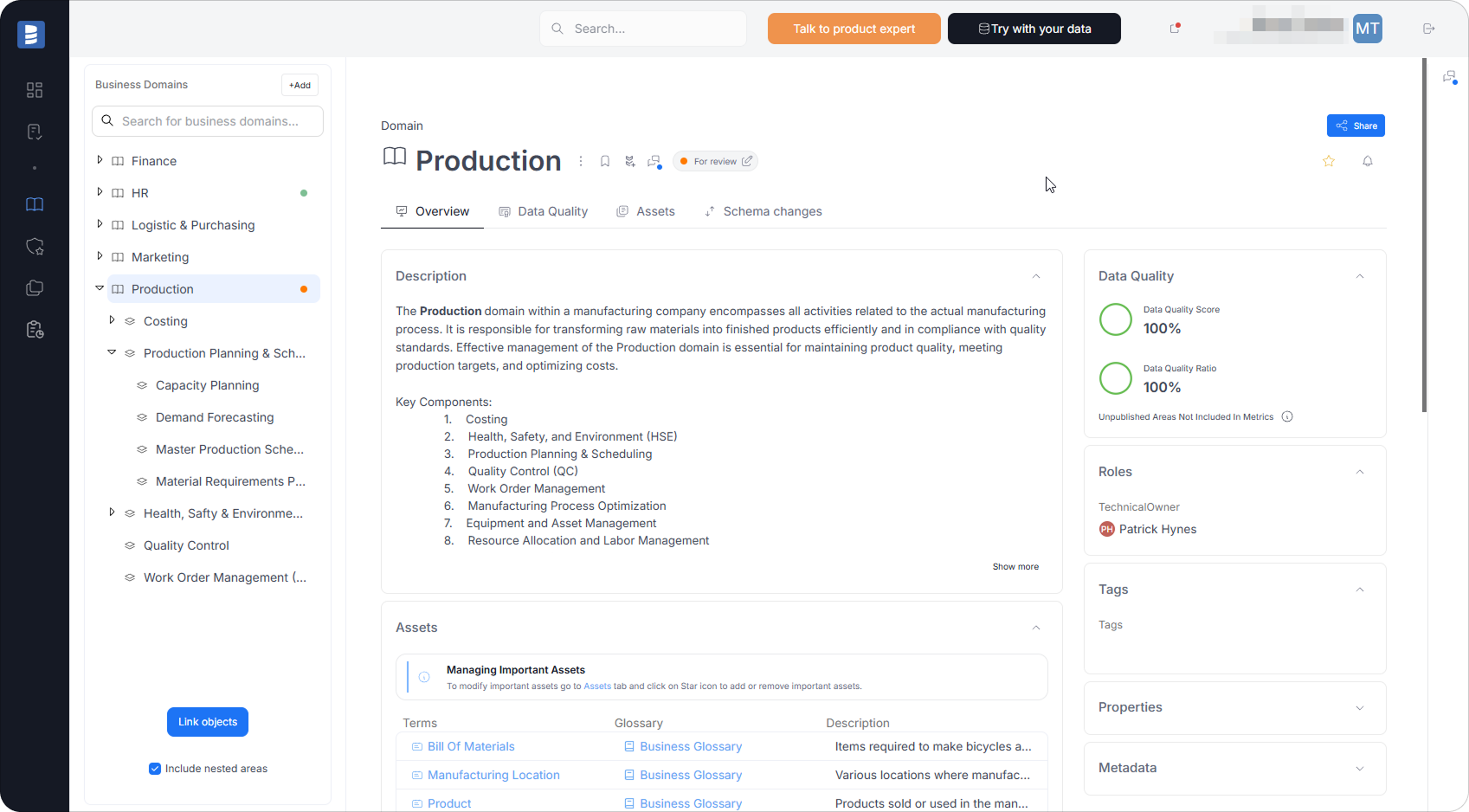
2. Business Glossary
Create a centralized glossary that defines business terms (e.g., Revenue, Active Customer, Invoice Amount) and link them to Oracle columns and Power BI measures.
Benefits: consistent metric definitions across teams.
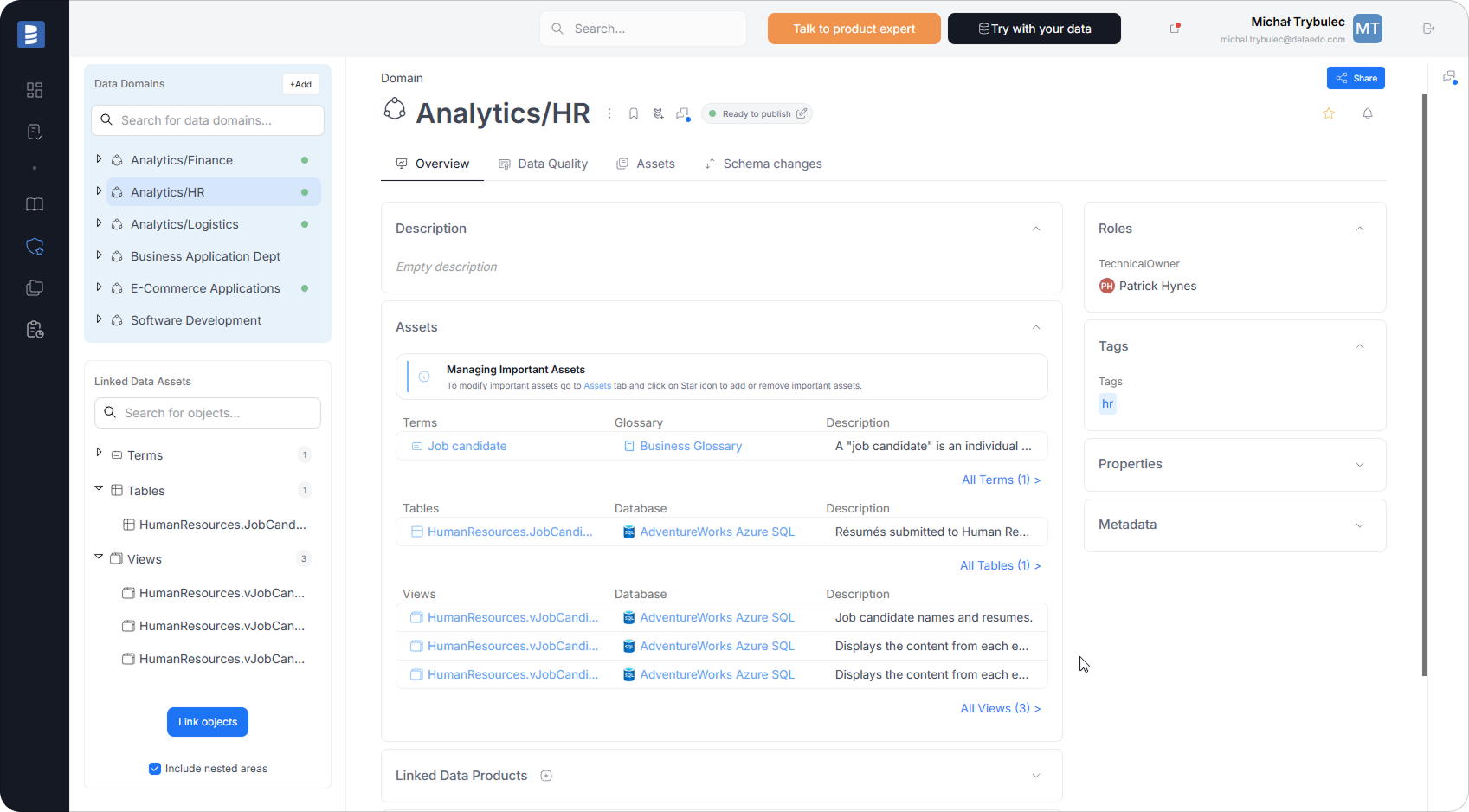
3. Governance and Ownership
Assign data owners and stewards, track refresh schedules, and manage sensitivity tags.
Dataedo turns your technical model into a governed, discoverable knowledge base.
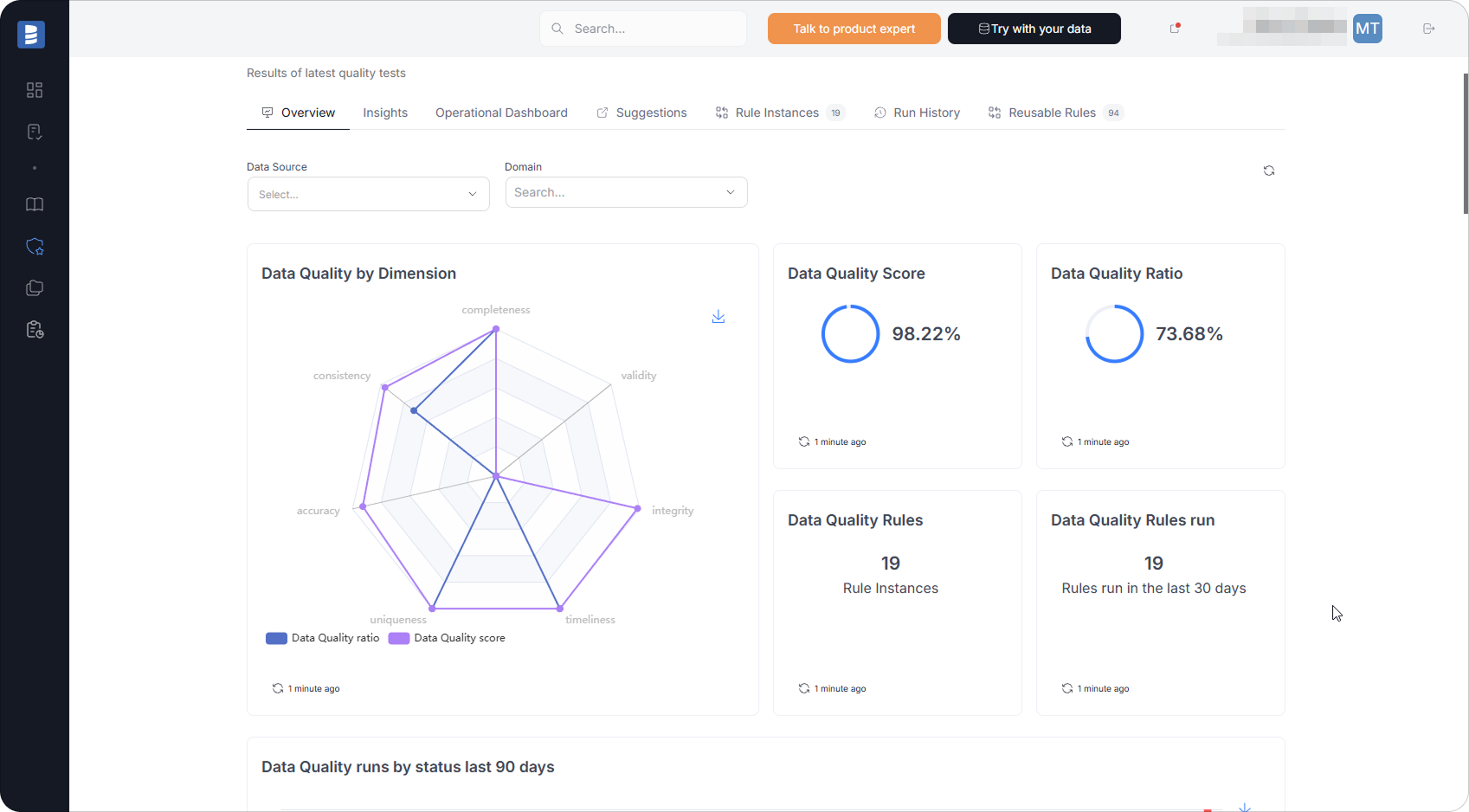
4. Data Quality & Context
Document data quality indicators and business rules directly within your Oracle schema documentation.
Flag columns with known issues, track validation results, and capture comments on data accuracy, completeness, or timeliness.
Examples:
- Mark fields with high null rates or inconsistent formats.
- Add notes about transformation or cleansing logic applied before loading to Power BI.
- Track data source reliability (e.g., manual uploads vs. automated feeds).
Benefits: proactive issue detection, transparent data quality context for analysts, and better decision confidence.
5. End-to-End Lineage
Visualize lineage from Oracle source tables → Power BI datasets → reports and dashboards.
See exactly how each column feeds your DAX measures and visuals.
Benefits: faster troubleshooting, reliable impact analysis, full transparency.
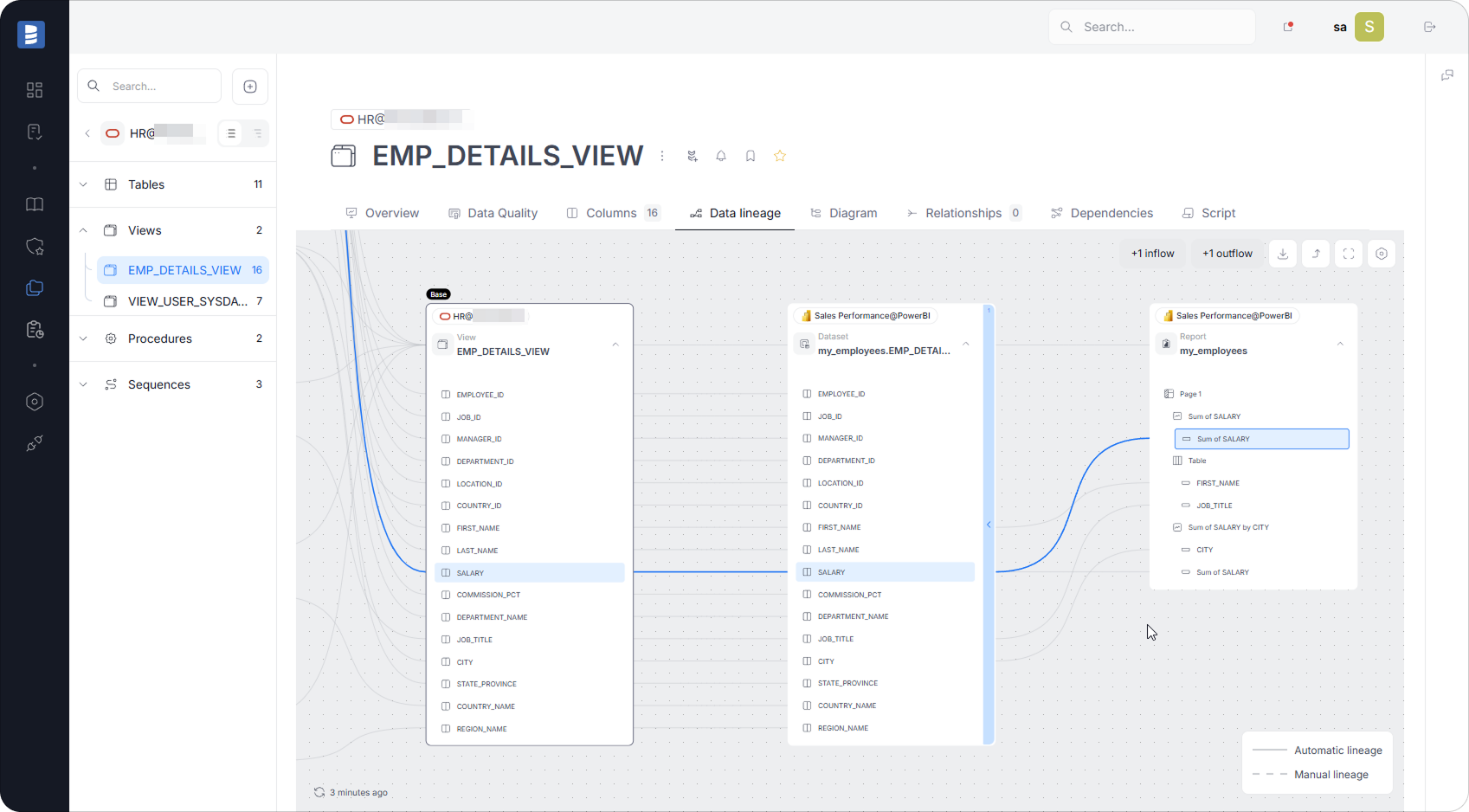
See your Oracle → Power BI lineage in minutes with Dataedo.
Book a demo or start a free trial to document your Oracle schemas, standardize your glossary, and build governed analytics faster.
Mini Cheat Sheet: Best Way to Integrate Oracle with Power BI
✅ Choose Import for faster visuals or DirectQuery for real-time freshness.
✅ Always confirm driver compatibility (Power BI x64 ↔ Oracle client x64).
✅ Keep query folding intact for performance.
✅ Document schemas, lineage, and business definitions in Dataedo for clarity and governance.