


 Michał Trybulec
Connecting Snowflake to Power BI enables data teams to visualize cloud-scale analytics with interactive dashboards and real-time insights. This guide explains how to connect Snowflake to Power BI step by step, choose between Import and DirectQuery modes, configure the Snowflake connector for Power BI, optimize performance, and troubleshoot common connection issues.
Whether you’re a data engineer, BI developer, or analytics professional, you’ll learn the best way to integrate Snowflake with Power BI and ensure a fast, secure, and stable setup.
Power BI and Snowflake Connection Modes: Import vs. DirectQuery
When setting up your Power BI Snowflake connection, one of the most important decisions is how Power BI accesses your data - through Import or DirectQuery mode. Each approach affects report performance, data freshness, and how queries are executed against Snowflake. Understanding the difference helps you choose the right mode for your analytical and infrastructure needs.
Import Mode
Import mode copies data from Snowflake into the Power BI model.
➕ Pros:
- High-speed visuals and full DAX capabilities.
- Works offline, independent from the live Snowflake warehouse.
➖ Cons:
- Requires scheduled refresh; potential data latency.
- Larger Power BI file sizes and memory consumption.
✅ Best for: Historical analytics, finance dashboards, and reports using incremental refresh.
DirectQuery Mode
DirectQuery keeps data in Snowflake and runs live queries every time visuals refresh.
➕ Pros:
- Real-time or near real-time analytics.
- No data duplication or storage overhead.
➖ Cons:
- Depends on Snowflake query performance and user concurrency.
- Some Power BI DAX functions may not be supported.
✅ Best for: Operational monitoring, IoT dashboards, and scenarios where data freshness is critical.
Step-by-Step Guide to Connect Power BI to Snowflake
Setting up a Snowflake Power BI connection is straightforward, but it’s important to follow the right configuration steps to ensure performance, stability, and security. In this step-by-step guide to connect Snowflake to Power BI, you’ll learn how to establish a reliable connection using the built-in Snowflake connector for Power BI, authenticate securely, and start building data-driven dashboards from your cloud warehouse.
Prerequisites
Before connecting, ensure that you have:
- Access to your Snowflake account (URL, warehouse, database, and schema).
- Login credentials (username/password or SSO).
- The Power BI Desktop application (latest version).
- For scheduled refresh or DirectQuery in the cloud: a configured Power BI Gateway.
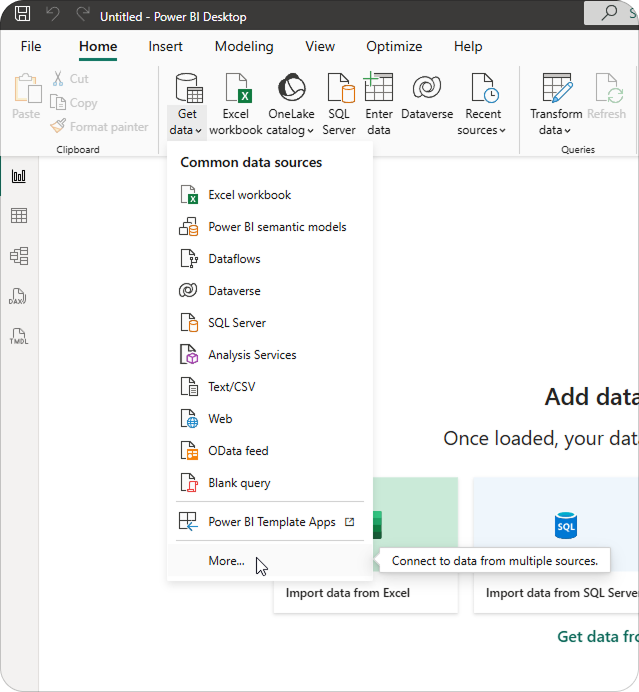
1. Open Power BI Desktop → Get Data → Snowflake
- Launch Power BI Desktop.
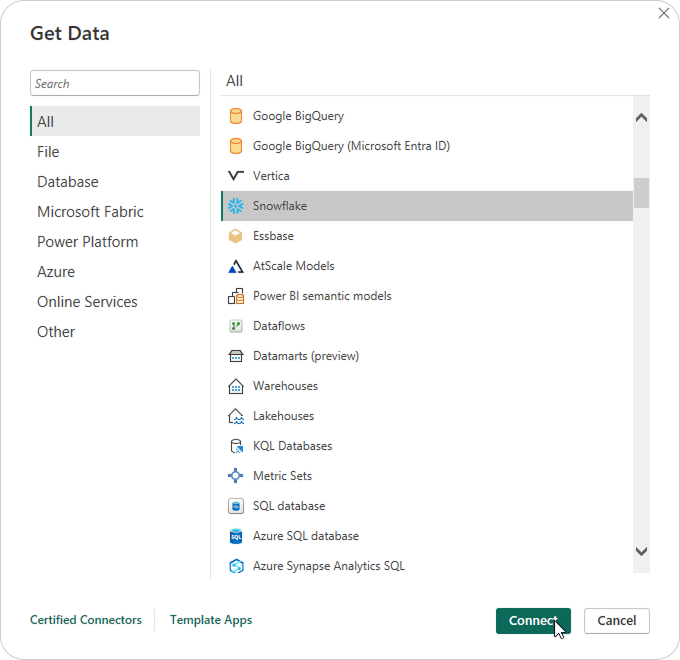
- Select Get Data → More... → Snowflake.
- In the connection window, enter your Snowflake server URL (e.g., myorg.snowflakecomputing.com) and warehouse name.
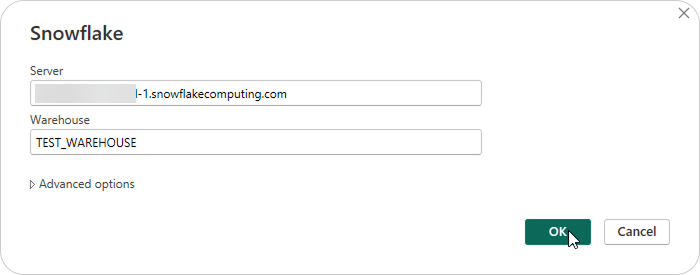
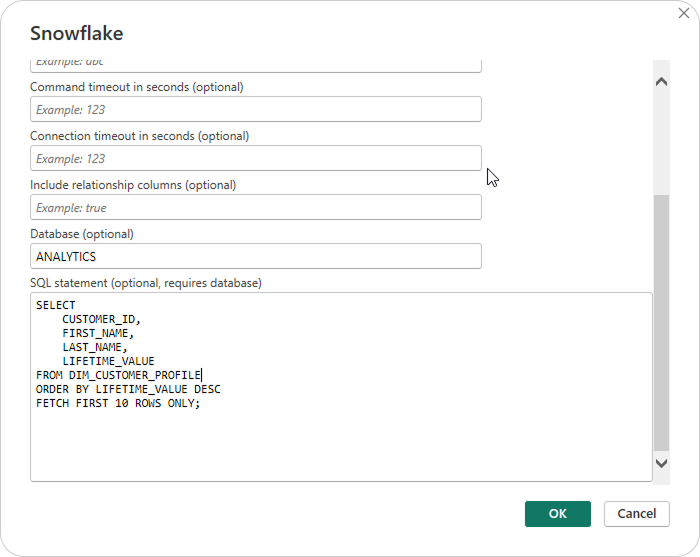
- Optionally, specify a database and schema.
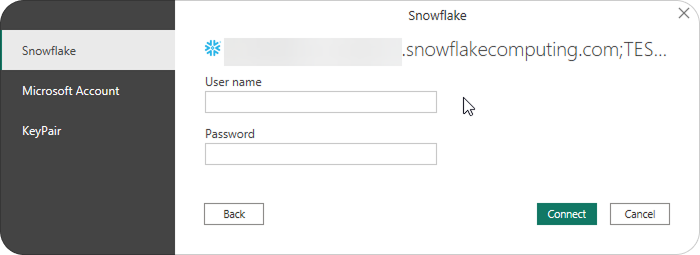
2. Authenticate and Connect
Sign in using your Snowflake credentials:
- Username/Password (most common)
- Single Sign-On (SSO) via Okta, Azure AD, or another identity provider
- Key-pair authentication (for secure automated access)
Once connected, you’ll see available databases, schemas, and tables.
3. Select Data and Load
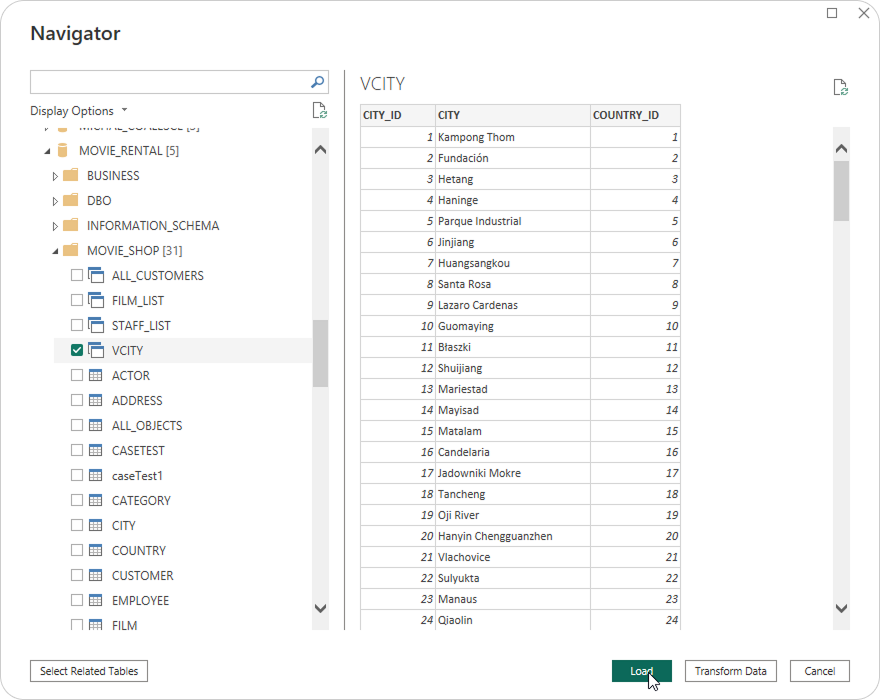
In the Navigator pane:
- Browse to the desired schema.
- Select tables or views.
- Click Load to import data, or Transform Data to shape it in Power Query first.
You can also paste a Snowflake SQL query in the “Advanced options” box to load only filtered or aggregated data.
4. Choose Data Connectivity Mode
Select Import or DirectQuery depending on your needs:
- Import for high-performance, cached models.
- DirectQuery for real-time, server-side querying.
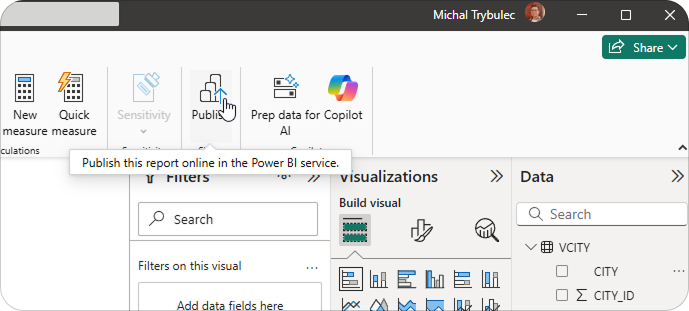
5. Publish to Power BI Service
Once your dataset and visuals are ready:
- Click Publish to upload the report to your Power BI workspace.
- Configure the Snowflake data source under the on-premises data gateway if you plan to use scheduled refresh or DirectQuery.
Performance Optimization for Snowflake Power BI Connections
Optimizing your Snowflake Power BI integration ensures faster visuals, lower compute costs, and a smoother user experience. Because Snowflake operates as a cloud data warehouse, each query consumes credits and resources — so efficient design directly impacts both performance and cost.
Best Practices
- Use query folding: Ensure transformations in Power Query are pushed down to Snowflake. Check “View Native Query” to confirm folding is preserved.
- Filter early: Load only necessary columns and rows. Apply filters or date parameters at the source to reduce data volume.
- Leverage clustering & micro-partition pruning: Design Snowflake tables with clustering keys to minimize scan size and accelerate DirectQuery performance.
- Optimize warehouse size: Use appropriately sized virtual warehouses and auto-suspend/auto-resume for cost-efficient performance.
- Simplify your Power BI model: Adopt a star schema, minimize relationships, and use fewer calculated columns.
- Cache or pre-aggregate data: For recurring reports, create summary tables or Snowflake materialized views to reduce query complexity.
Troubleshooting Power BI Snowflake Connection Errors
Even well-configured environments can face connection problems. These often relate to authentication, network access, or query folding limitations.
Common causes
- Incorrect credentials or expired tokens.
- Firewall or proxy blocking Snowflake endpoint.
- TLS/SSL certificate or protocol mismatch.
- Gateway not configured or offline.
- Query folding disabled due to incompatible transformations.
Diagnostic checklist
- Can you connect to Snowflake via SnowSQL or another BI tool using the same credentials?
- Does “View Native Query” appear for key steps in Power Query?
- Is your Power BI Gateway mapped to the correct Snowflake data source?
- Are queries returning data within expected time limits?
How Dataedo Helps with Snowflake → Power BI Integration
Connecting tools is just one part of building a strong analytics ecosystem. To truly manage and scale your Snowflake Power BI integration, you need shared understanding and visibility into your data flows.
Dataedo helps by providing:
- Data documentation for Snowflake schemas, tables, and columns.
- A business glossary ensuring consistent metric definitions across BI reports.
- End-to-end data lineage from Snowflake tables to Power BI datasets and dashboards.
- Context for sensitive fields, ownership, and usage patterns.
With Dataedo, you can see your Snowflake → Power BI lineage in minutes, standardize your data knowledge base, and accelerate report development.
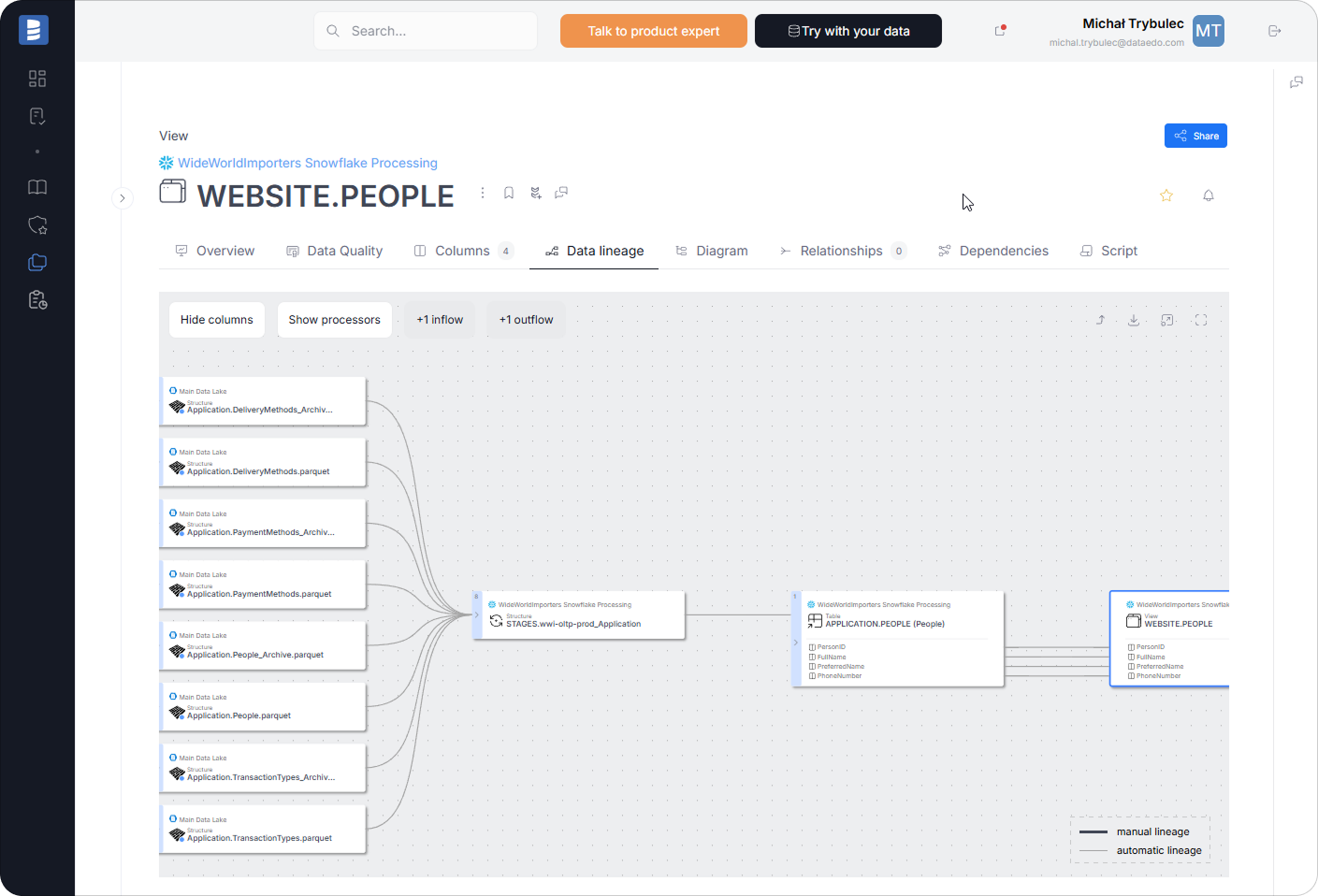
Explore Dataedo to document your Snowflake models, track Power BI lineage, and keep your data ecosystem transparent and well-governed.