


 Michał Trybulec
If you’re looking for how to connect SQL Server to Power BI and keep the setup stable, fast, and secure, this guide is for you. Below you’ll find a practical SQL Server Power BI connection walkthrough covering modes (Import vs DirectQuery), the SQL Server connector for Power BI, optimization tips, and a troubleshooting checklist.
Connection options: Import vs DirectQuery
Import — when to use it
Import copies data into the Power BI model.
➕ Pros: fast visuals, full DAX capabilities, great for medium volumes, no runtime dependency on the database.
➖ Cons: memory footprint, data latency between refreshes, needs scheduling.
✅ Best for: finance analytics, historical reports, models leveraging incremental refresh.
DirectQuery — when to use it
DirectQuery leaves data in SQL Server; Power BI sends queries at view time.
➕ Pros: near real-time, no data duplication, smaller model size.
➖ Cons: query limits, potential visual latency, some DAX features unavailable.
✅ Best for: operational monitoring, IoT scenarios, very large fact tables, strict freshness requirements.
Step-by-step tutorial – connect Power BI to SQL Server
Prerequisites
- Access to the SQL instance (DNS/host, port 1433 or custom).
- Credentials (Windows/AD or SQL Auth) with READ permissions on required schemas/tables.
- For cloud refresh/DirectQuery: installed and configured Power BI gateway SQL Server (on-premises data gateway).
Power BI Desktop → Get Data → SQL Server
- Open Power BI Desktop → Get Data → SQL Server.
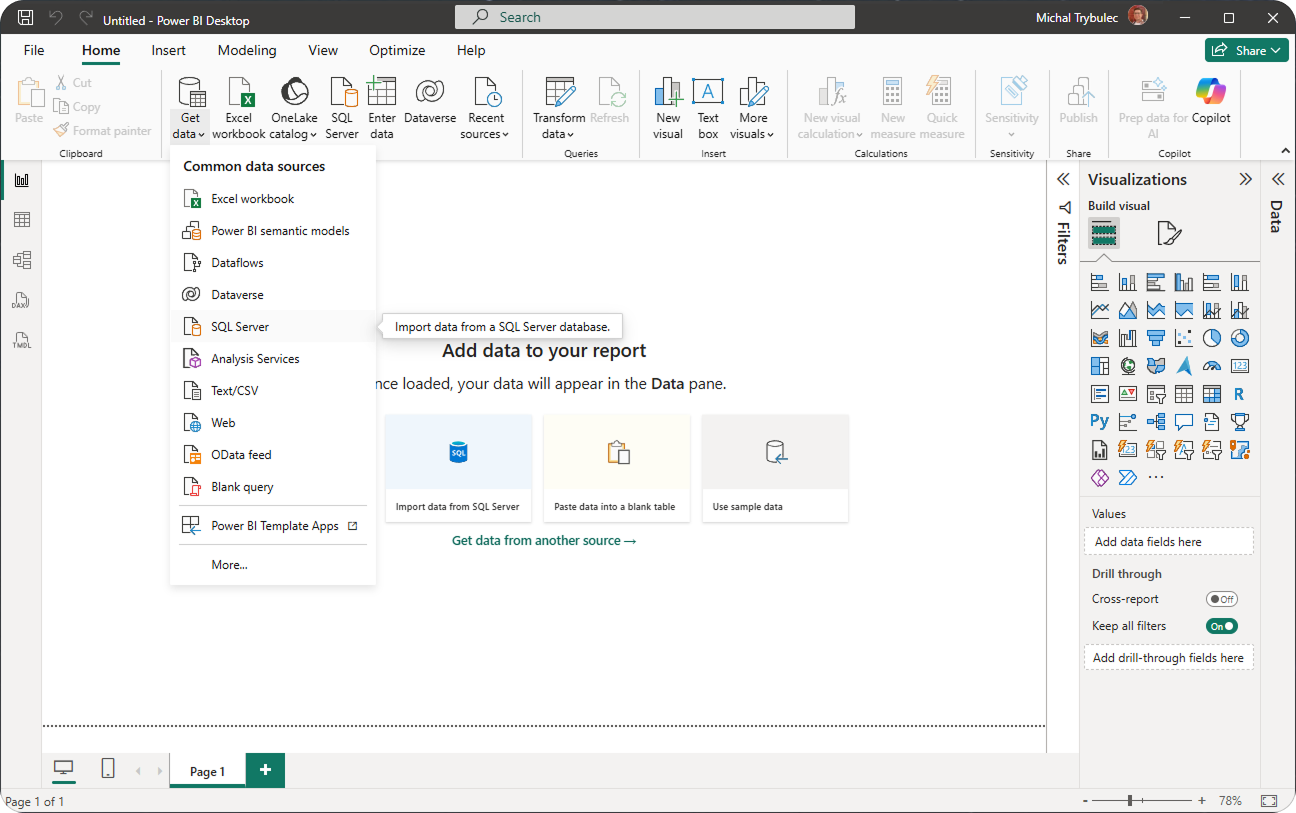
- Enter the Server (e.g., 192.168.1.123, server\instance, or server.domain.com,1433) and optionally the Database name.
- Choose Data Connectivity mode: Import or DirectQuery.
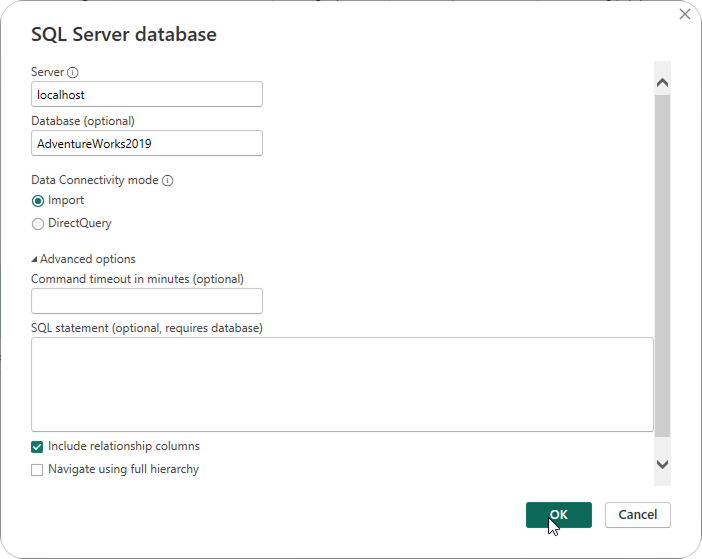
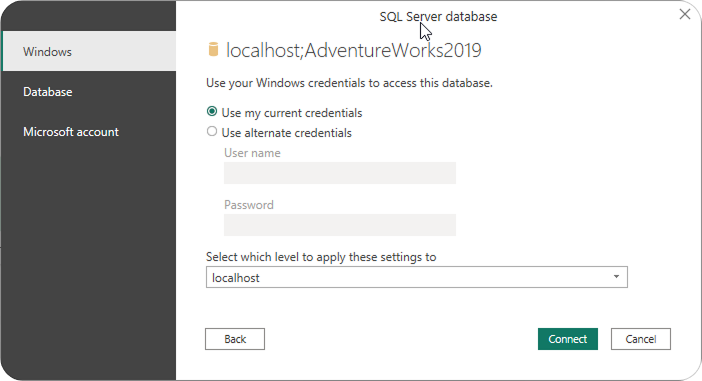
- Click OK and sign in (Windows/AD or SQL).
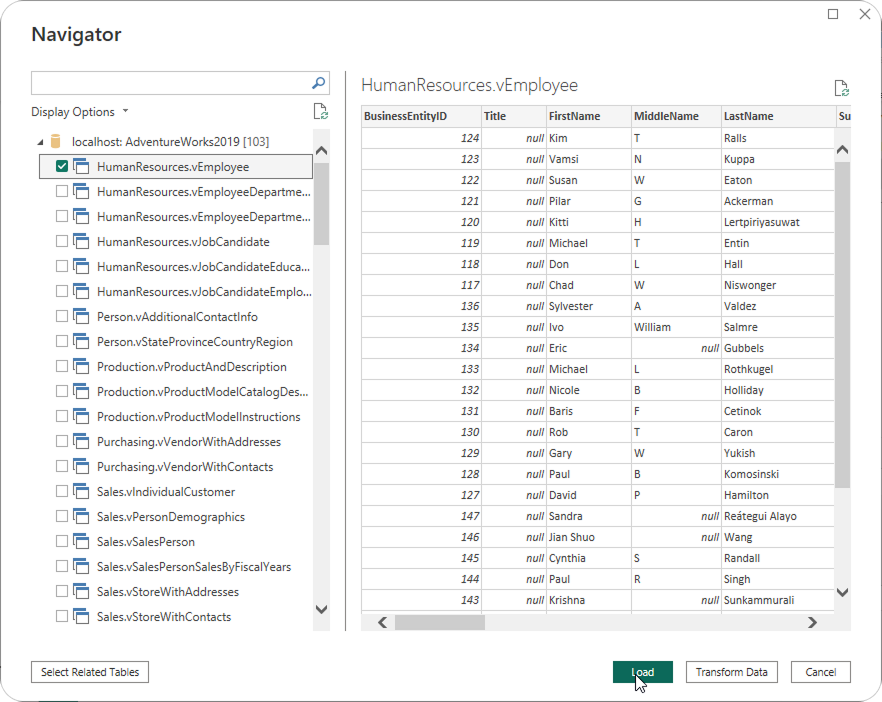
- In Navigator, select tables/views and Load (or Transform Data to shape data first).
Connection string & advanced options
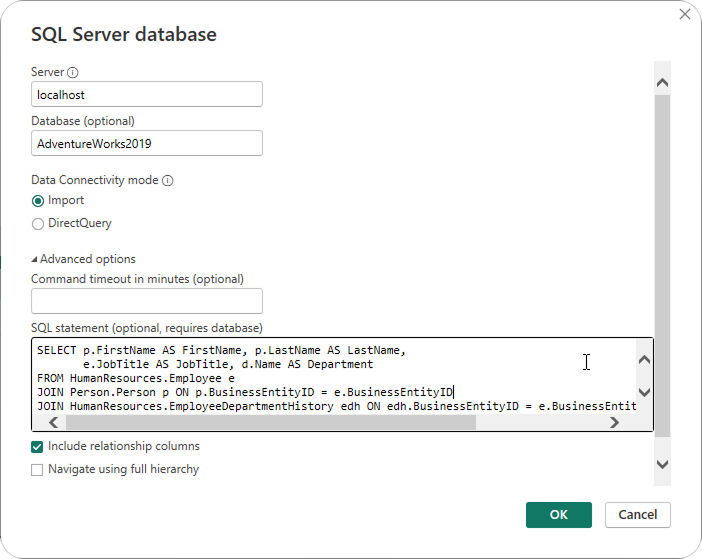
In Advanced options you can paste a native SQL statement.
Security & stability tips
- Try to always use an encrypted connection (TLS) for better security and data protection.
- Set a sensible Command timeout.
- Load only needed columns; prefer views with pre-aggregation or filtering for heavy facts.
Query folding
Why it matters. With SQL Server, query folding lets Power Query translate your transformations into native SQL (e.g., WHERE, GROUP BY) so the database engine does the heavy lifting—faster refreshes, smaller memory footprint, and better scalability.
Good practices
- Filter at the source using parameters (date ranges, region, tenant) so predicates become WHERE clauses server-side.
- Use SQL views (indexed or materialized where it makes sense) to pre-filter or pre-aggregate large fact tables.
- Normalize data types to improve accuracy, enable folding, and reduce cast/convert overhead.
Publish to Power BI Service
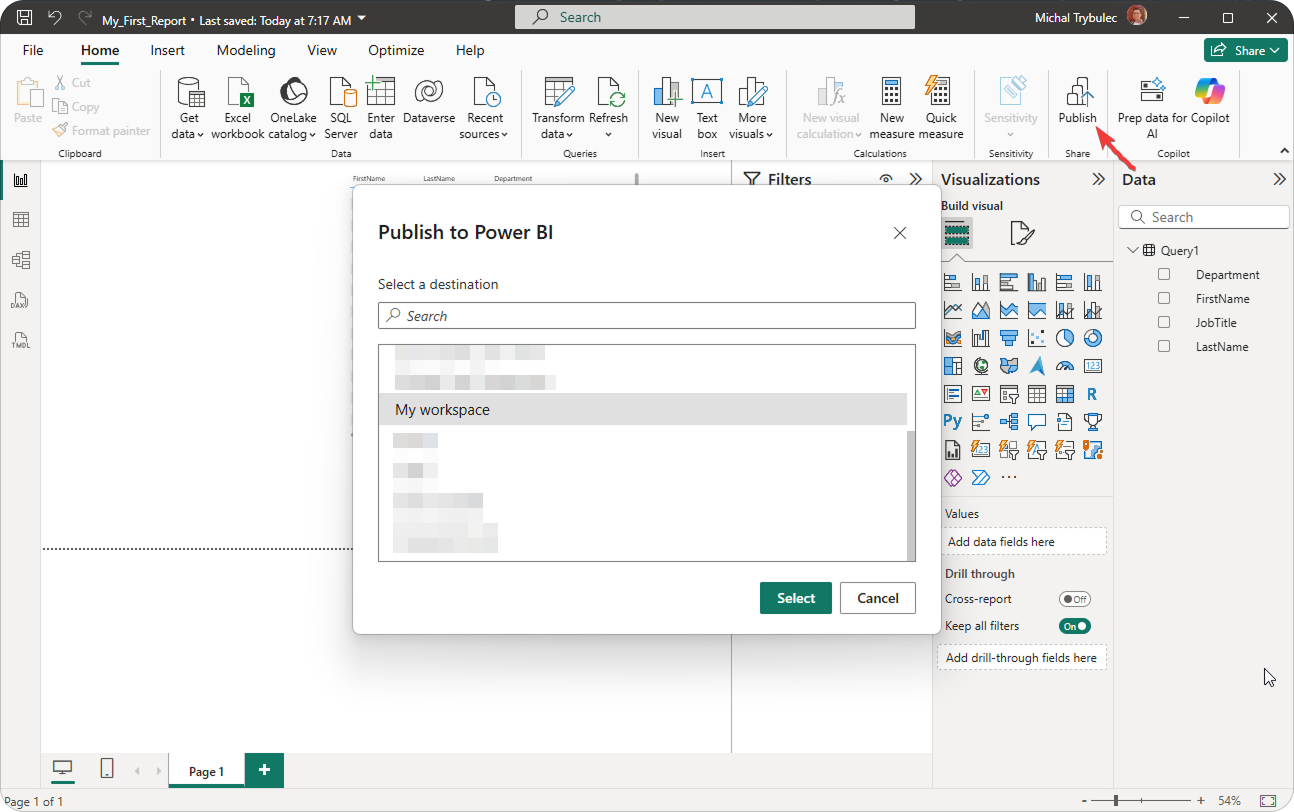
Publish from Power BI Desktop to the right Workspace.
Performance optimization for SQL Server Power BI connections
Optimizing the connection between SQL Server and Power BI is not just about speed - it’s about stability, scalability, and cost efficiency. A well-tuned connection and properly designed data model can reduce report load times from minutes to seconds, minimize server load, and lower resource consumption in Power BI Service. In production environments - especially when using DirectQuery or working with large datasets - good optimization practices ensure reports remain responsive, queries execute efficiently, and users always see up-to-date data without performance bottlenecks.
Key optimization practices
- Indexes & statistics - Use clustered, nonclustered, and covering indexes aligned to the most common filter and join patterns. Keep statistics up to date to help the query optimizer choose efficient plans.
- Partitioning - Partition large fact tables by date (e.g., month or quarter) to speed up scans, improve incremental refresh performance, and simplify maintenance.
- Aggregations & indexed views - Create aggregations or indexed views to pre-summarize large tables and reduce query workload. This is especially effective for dashboards with repeated groupings or totals.
- Query folding - Preserve query folding end-to-end. Folding ensures Power Query pushes filters, joins, and aggregations to SQL Server, so the heavy computation happens on the database side, not in Power BI.
- Parameterize queries - Use parameters to dynamically pass filters (e.g., region, date range) into SQL Server queries for efficient, targeted data retrieval.
- Simplify the model - Keep your Power BI data model lean: include only necessary columns, follow a star schema, and implement well-structured RLS (Row-Level Security) to reduce model complexity and improve query performance.
Troubleshooting Power BI SQL Server connection errors
Even with a properly configured setup, connection errors between Power BI and SQL Server are common, especially in enterprise or hybrid environments. These issues can stem from authentication mismatches, network restrictions, encryption protocols, or performance bottlenecks. Understanding where and why the connection fails is the first step toward resolving it quickly. Below are the most frequent root causes and a practical diagnostics checklist to help you identify and fix them efficiently.
Common culprits
- Logins/Kerberos: SPN or delegation configuration issues, mixed authentication modes, or expired passwords.
- Firewall/port 1433: Blocked inbound/outbound rules or a nonstandard SQL Server instance port.
- TLS/Encryption: Certificate or protocol mismatches — such as untrusted or expired certificates, hostname mismatches, or unsupported TLS versions — can block the secure handshake.
- Gateway/driver versions: ODBC or OLE DB drivers that are out of sync with the installed Power BI gateway version.
- Timeouts: Long-running scans caused by missing indexes or the loss of query folding that forces processing on the client side.
- No folding: Power Query transformations that prevent SQL pushdown, resulting in slower refreshes and higher resource consumption.
Diagnostics checklist
- Are data source credentials valid and of the correct authentication type (Windows, SQL, or Azure AD)?
- Is the on-premises data gateway online, up to date, and mapped to the correct SQL Server source?
- Do critical Power Query steps show View Native Query, confirming that folding is preserved?
- Do your SQL indexes align with key filters and joins used by Power BI reports?
- Is encryption enabled with a trusted certificate, matching hostname, and supported TLS version?
- Have you benchmarked the same SQL query in SSMS to compare performance and identify bottlenecks?
How Dataedo helps with SQL Server → Power BI
Integration is more than a connector—you need shared language and context:
- Document SQL Server schemas: tables, columns, PK/FK, views.
- Business glossary: consistent definitions for metrics and KPIs across teams.
- End-to-end lineage SQL Server → Power BI: trace from source tables to reports and datasets.
- Data quality context: sensitive fields, ownership, comments, examples.
Check out Dataedo and ensure clear lineage from SQL Server to Power BI and speed up report development.
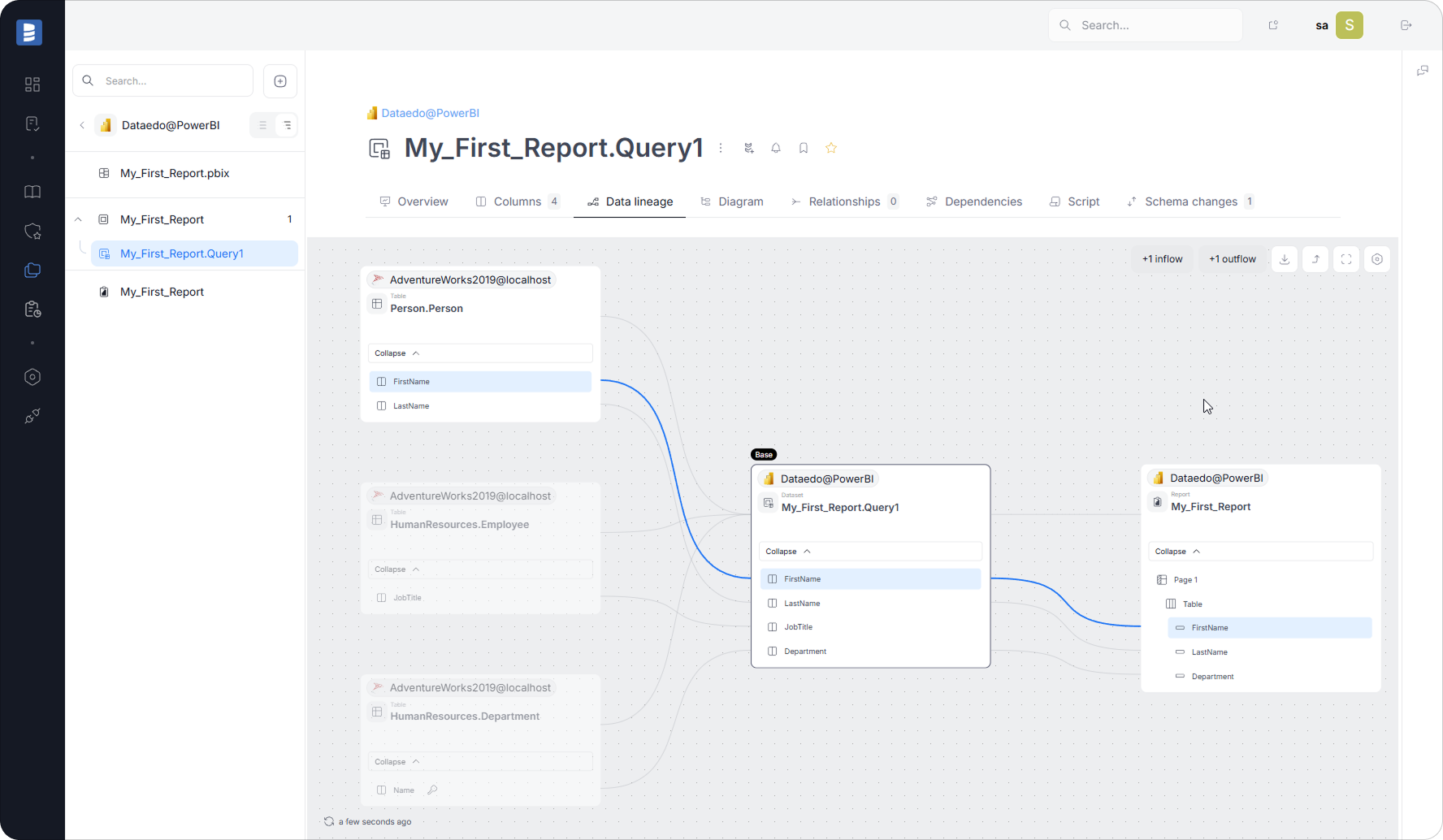
See your SQL Server → Power BI lineage in minutes with Dataedo.
Book a demo or start a free trial to document schemas, standardize your business glossary, and auto-map lineage from source tables to Power BI datasets.
Mini cheat sheet: best way to integrate SQL Server with Power BI
- Choose Import for deeper analytics (with incremental refresh) or DirectQuery for freshness.
- Design query folding and indexes for your query patterns.
- Document and govern—create a SQL Server Power BI tutorial internally and manage lineage with Dataedo.