


 Michał Trybulec
MySQL is a common source for sales, product, and operational reporting, while Power BI is where business users expect fast and trustworthy dashboards. The connector setup is simple, but a durable production setup requires better choices around connectivity mode, source tuning, and governance.
In this guide, you’ll learn:
- how to connect MySQL to Power BI step by step,
- how to choose between Import and DirectQuery,
- how to improve stability and performance,
- and how to document MySQL -> Power BI dependencies with Dataedo.
Power BI and MySQL Connection Modes: Import vs DirectQuery
Import Mode
Power BI loads MySQL data into the semantic model during refresh and serves users from in-memory storage.
Import is best when you want:
- fast report response times,
- richer calculations,
- predictable performance for larger audiences.
DirectQuery Mode
Power BI sends SQL queries to MySQL at runtime instead of caching full datasets in the model.
DirectQuery is best when you want:
- fresher data,
- lower duplication in BI storage,
- tighter source-side control.
| Mode | Best for | Watch out for |
|---|---|---|
| Import | Fast interactivity and advanced modeling | Refresh duration, dataset size |
| DirectQuery | Fresh operational visibility | Query latency, source workload |
Step-by-Step: Connect Power BI to MySQL
Prerequisites
Before setup:
- gather MySQL host, port, database, and credentials,
- verify your account can read required schemas/tables,
- confirm network/firewall access from Power BI Desktop host,
- if required, install MySQL Connector/NET (64-bit) so Power BI can connect to MySQL.
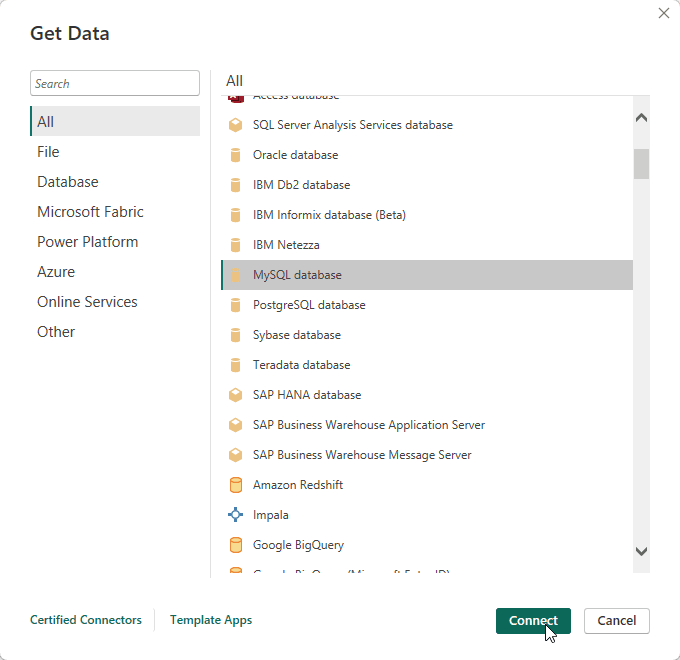
1. Open Get Data and select MySQL database
In Power BI Desktop:
- Select Get Data.
- Search for MySQL database.
- Click Connect.
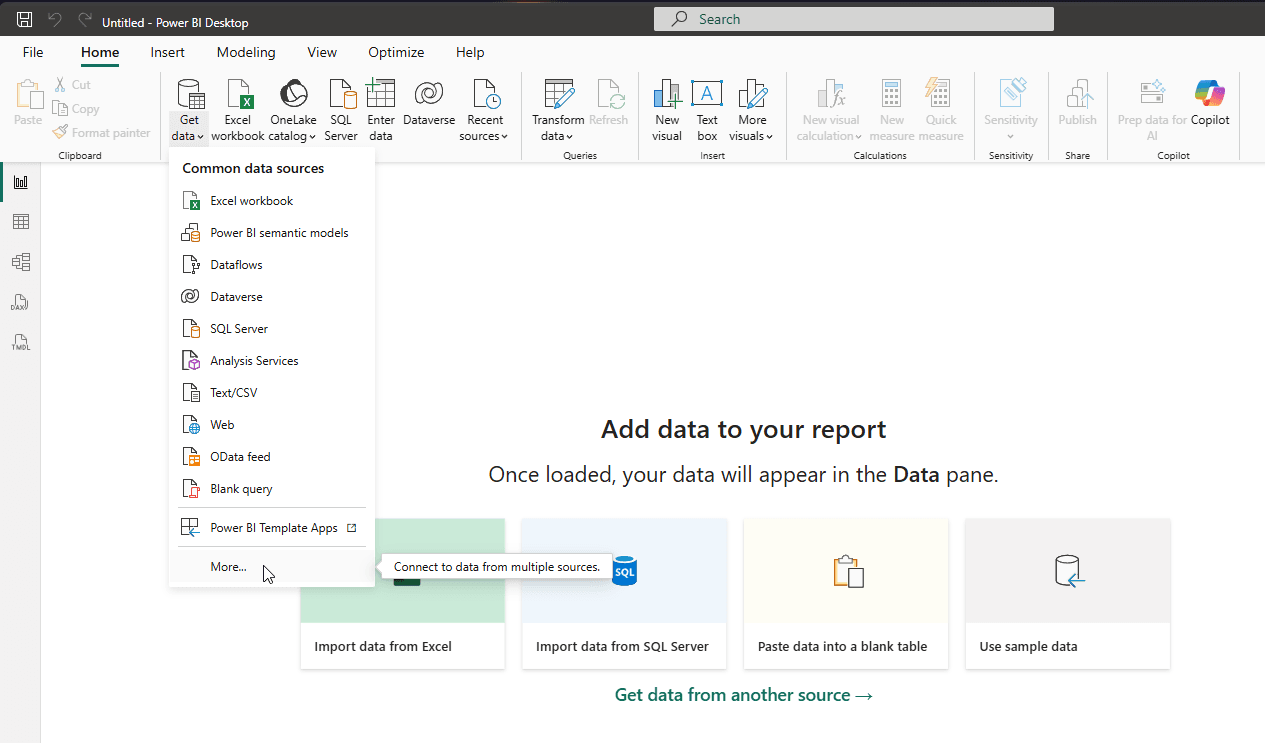 Power BI Desktop flow for selecting the MySQL connector.
2. Install the Required Additional Component (if prompted)
If Power BI requests an additional component, install MySQL Connector/NET (64-bit). 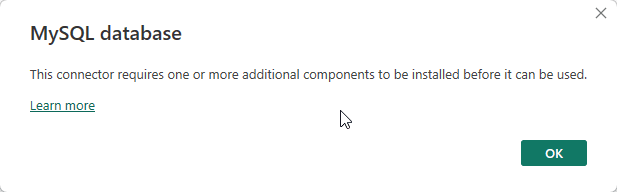 Prompt to install the required MySQL connector component.
After installation:
- Restart Power BI Desktop.
- Open Get Data -> MySQL database again.
- Click Connect. Reconnect flow after installing MySQL Connector/NET.
3. Enter Server and Database Details
Provide:
- server (and port if non-default),
- database name (optional but recommended). For initial validation, start with a limited scope and expand later.
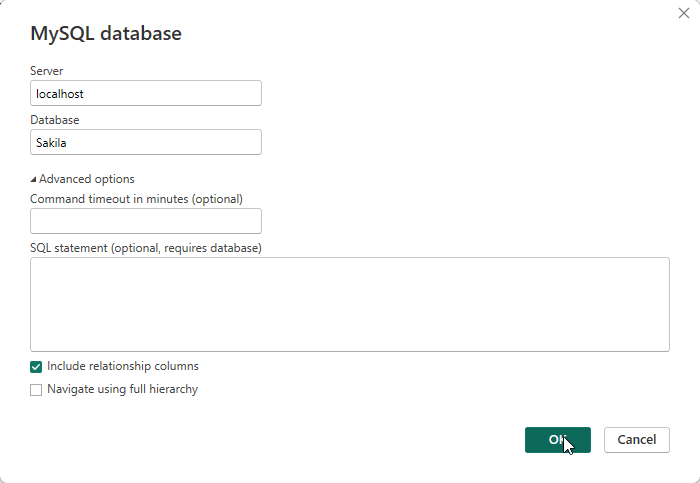 Server and database fields completed in the MySQL connection dialog.
4. Authenticate
Choose the authentication method available in your environment:
- Windows authentication (integrated sign-in),
- Database authentication (MySQL user and password). For controlled environments, prefer dedicated BI service credentials over personal accounts.
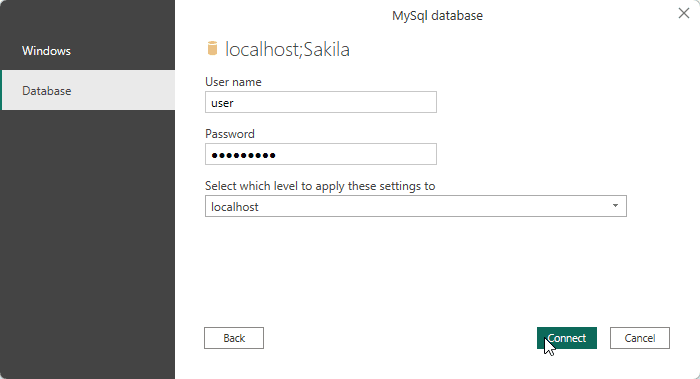 Authentication dialog for MySQL connection in Power BI Desktop.
5. Select Data and Transform if Needed
In Navigator:
- choose the required tables/views,
- check data types and null behavior,
- use Power Query for cleanup, naming, and basic shaping. Good practice: prioritize curated reporting views over raw operational tables when possible.
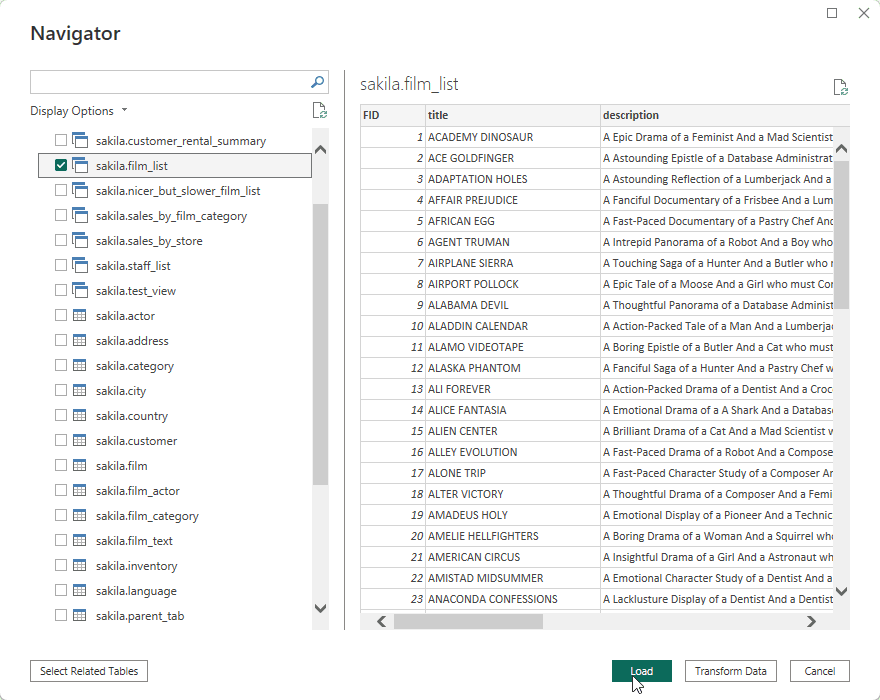 Navigator with selected MySQL objects and preview.
6. Publish and Configure in Power BI Service
After local validation:
- Publish report and semantic model to the target workspace.
- Configure dataset credentials in Power BI Service.
- Set refresh schedule for Import models.
- Configure gateway when MySQL is private or on-premises.
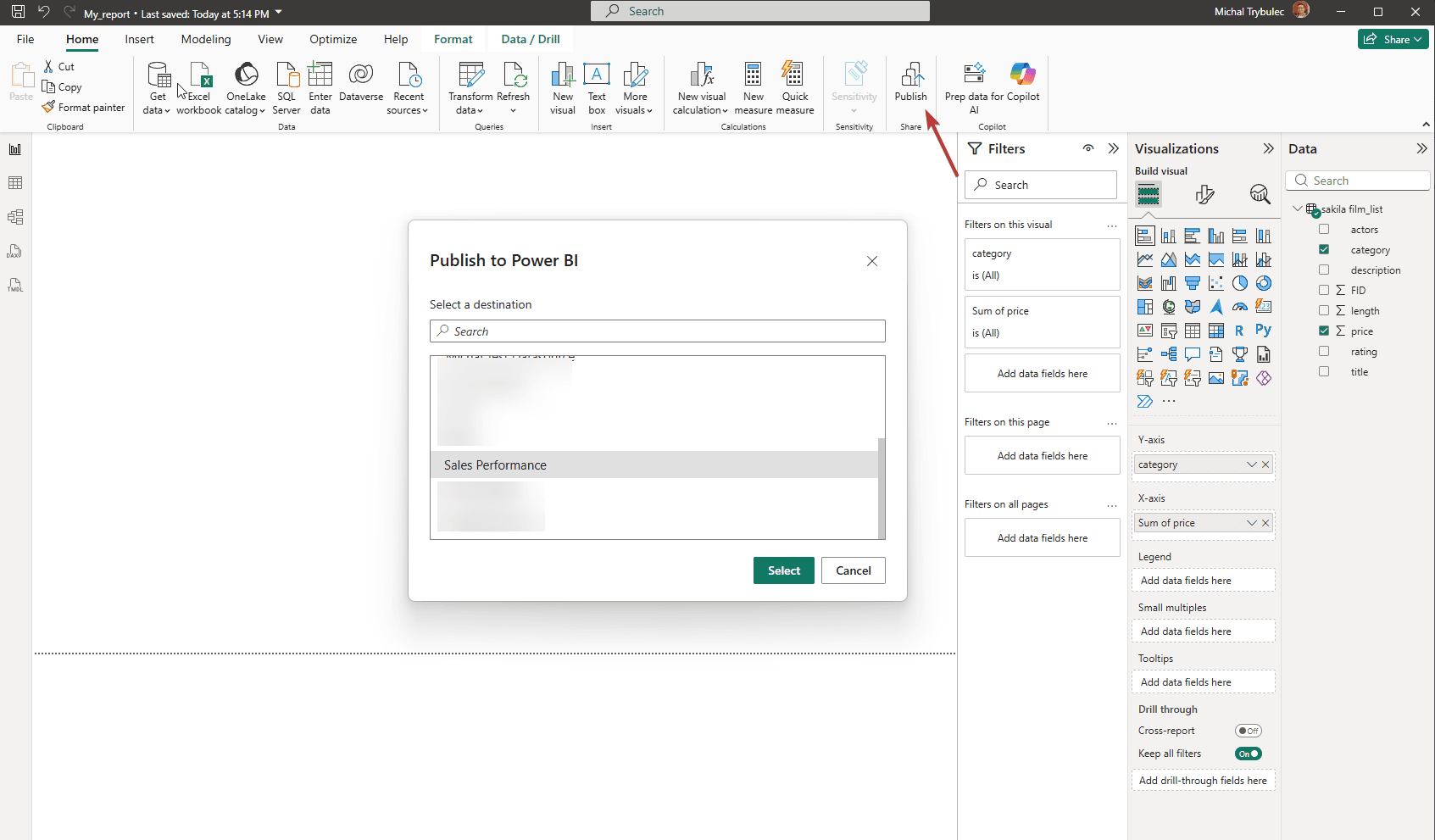 Publishing from Power BI Desktop to the selected workspace.
Performance Optimization for MySQL Power BI Connections
Best Practices
For MySQL-backed analytics, optimization is about consistency as much as speed: predictable refresh windows, stable report response times, and acceptable load on the source system.
Start with a lean semantic model. Keep a star schema, remove unused columns early, and avoid calculated columns that can be pushed upstream. Smaller models refresh faster and remain easier to operate.
Move expensive work closer to MySQL. Filtering, joins, and pre-aggregation are typically more efficient in SQL than in late-stage Power Query steps. In Import mode this cuts refresh time; in DirectQuery it improves runtime responsiveness.
Tune MySQL for BI query patterns. Index columns used in joins and filters, keep statistics current, and consider partitioning large fact-like tables by date. Curated reporting views also reduce repeated transformation overhead.
When diagnosing bottlenecks, combine Power BI Performance Analyzer with MySQL telemetry (slow query log and EXPLAIN). This makes it easier to separate model issues from source-query issues.
Troubleshooting MySQL Power BI Connection Errors
Common Causes
Most MySQL connection errors come from environment mismatches rather than Power BI itself. Common sources include incorrect host/port values, DNS issues, invalid credentials, insufficient object permissions, or an outdated/missing MySQL connector component.
In production deployments, failures are also often related to SSL/TLS configuration mismatches between Power BI and MySQL, incorrect gateway mapping in Power BI Service, or query timeouts when the source is under heavy workload.
Diagnostic Checklist
- Test database access with the same credentials outside Power BI.
- Re-check host, port, authentication method, and SSL settings.
- Start with one small table to validate connectivity.
- Confirm gateway health and data source mapping in Power BI Service.
- Inspect MySQL logs for rejected, blocked, or long-running statements.
- Simplify queries and compare performance after each change. Screenshot placeholder - MySQL dataset settings in Power BI Service Screenshot placeholder: dataset settings page with gateway mapping and scheduled refresh details.
How Dataedo Helps with MySQL -> Power BI Integration
- Central Catalog for MySQL and BI Assets - Document MySQL schemas, tables, and views together with Power BI assets in one searchable catalog.
- Business Glossary Alignment - Map business terms to technical fields so KPI definitions stay consistent across teams and reports.
- End-to-End Lineage - Visualize how data flows from MySQL source objects to semantic models and downstream reports.
- Ownership and Governance Metadata - Assign ownership for datasets, critical fields, and business definitions.
- Change Impact Analysis - Before schema or transformation changes, identify affected dashboards, measures, and owners.
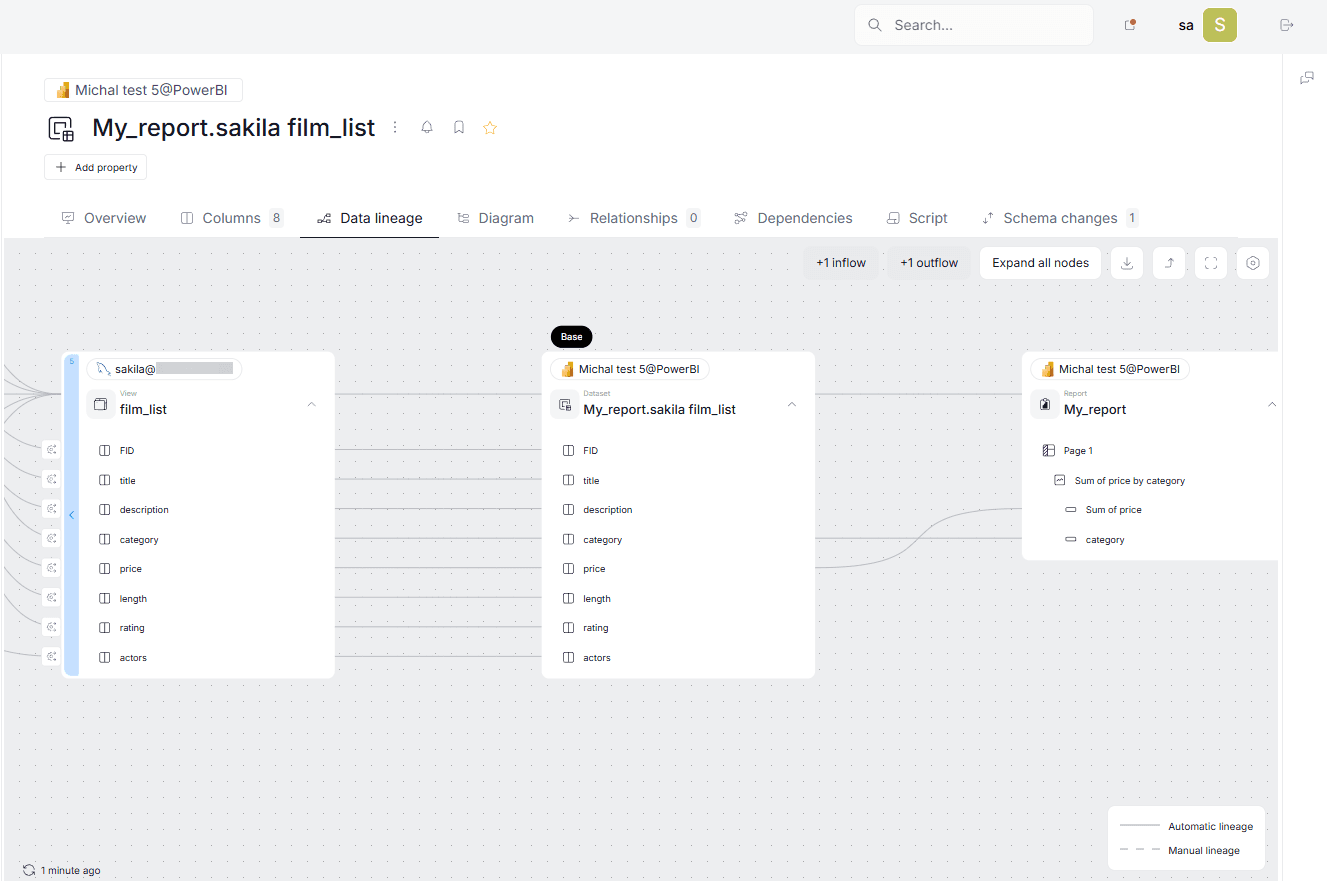 Screenshot placeholder: Dataedo lineage diagram linking MySQL tables to Power BI datasets and reports.
Build Reliable MySQL-Powered Reporting
A successful MySQL-to-Power BI setup is not only about getting data in. It is about repeatable delivery, transparent logic, and safer change management.
With documentation and lineage in place, teams can move faster without losing confidence in business metrics.
See how Dataedo helps document MySQL and Power BI together with full governance context. Book a short demo or start a free trial to scale trusted BI delivery.