


 Michał Trybulec
PostgreSQL is often the source of both operational and analytics-ready data, while Power BI is where business users consume the results. The connector setup itself is quick, but a reliable production integration requires a few design choices: the right connectivity mode, predictable refresh behavior, and clear visibility into where each metric comes from.
In this guide, you’ll learn:
- how to connect PostgreSQL to Power BI step by step,
- how to decide between Import and DirectQuery,
- how to tune performance and resolve common connectivity issues,
- and how to document PostgreSQL -> Power BI dependencies with Dataedo.
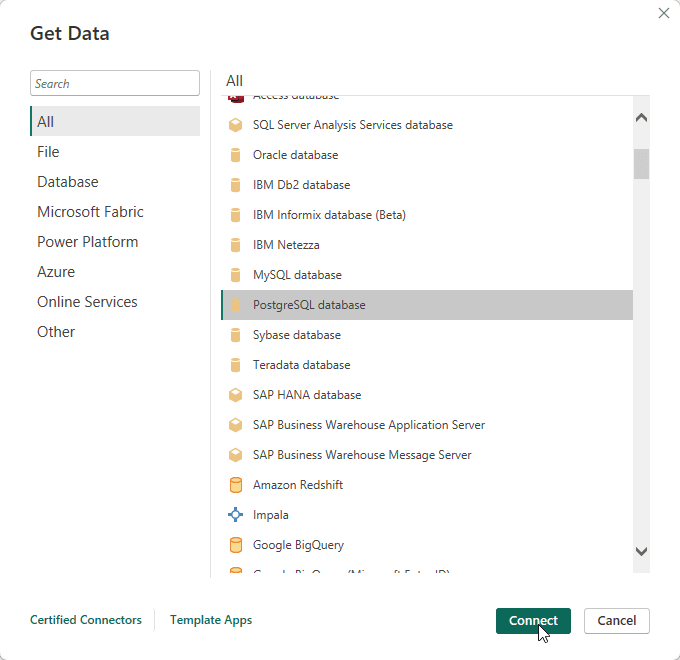 Power BI Desktop Get Data window with PostgreSQL database connector selected.
Power BI and PostgreSQL Connection Modes: Import vs DirectQuery
Import Mode
Power BI loads data into the semantic model during refresh and serves report queries from in-memory storage.
Use Import when you need:
- fast report interactions,
- complex DAX logic,
- broad modeling flexibility. Tradeoff: freshness depends on refresh cadence.
DirectQuery Mode
Power BI sends queries to PostgreSQL at runtime, for each user interaction.
Use DirectQuery when you need:
- near real-time visibility,
- reduced data duplication,
- centralized control in the source database. Tradeoff: report responsiveness depends heavily on source tuning, indexing, and query shape.
| Mode | Best for | Watch out for |
|---|---|---|
| Import | High interactivity and richer modeling | Refresh windows and dataset size |
| DirectQuery | Fresher data with less replication | Latency, source load, SQL tuning |
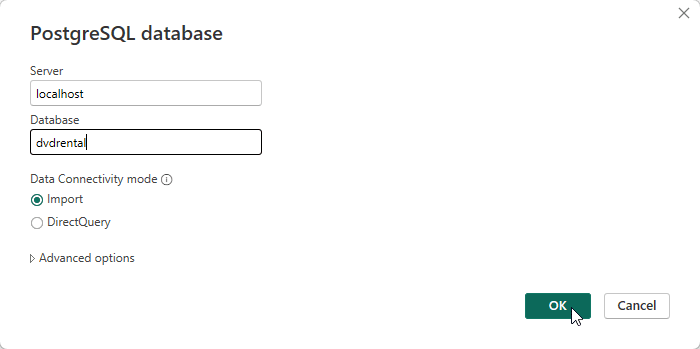 PostgreSQL connection dialog showing server, database, and Import vs DirectQuery mode selection.
Step-by-Step: Connect Power BI to PostgreSQL
Prerequisites
Before connecting:
- confirm PostgreSQL host, port, database name, and credentials,
- verify network access from your machine to PostgreSQL,
- ensure your role has read permissions on required schemas/tables,
- if publishing to Power BI Service, plan gateway setup for private networks.
1. Open Get Data and choose PostgreSQL database
In Power BI Desktop:
- Select Get Data.
- Search for PostgreSQL database.
- Click Connect.
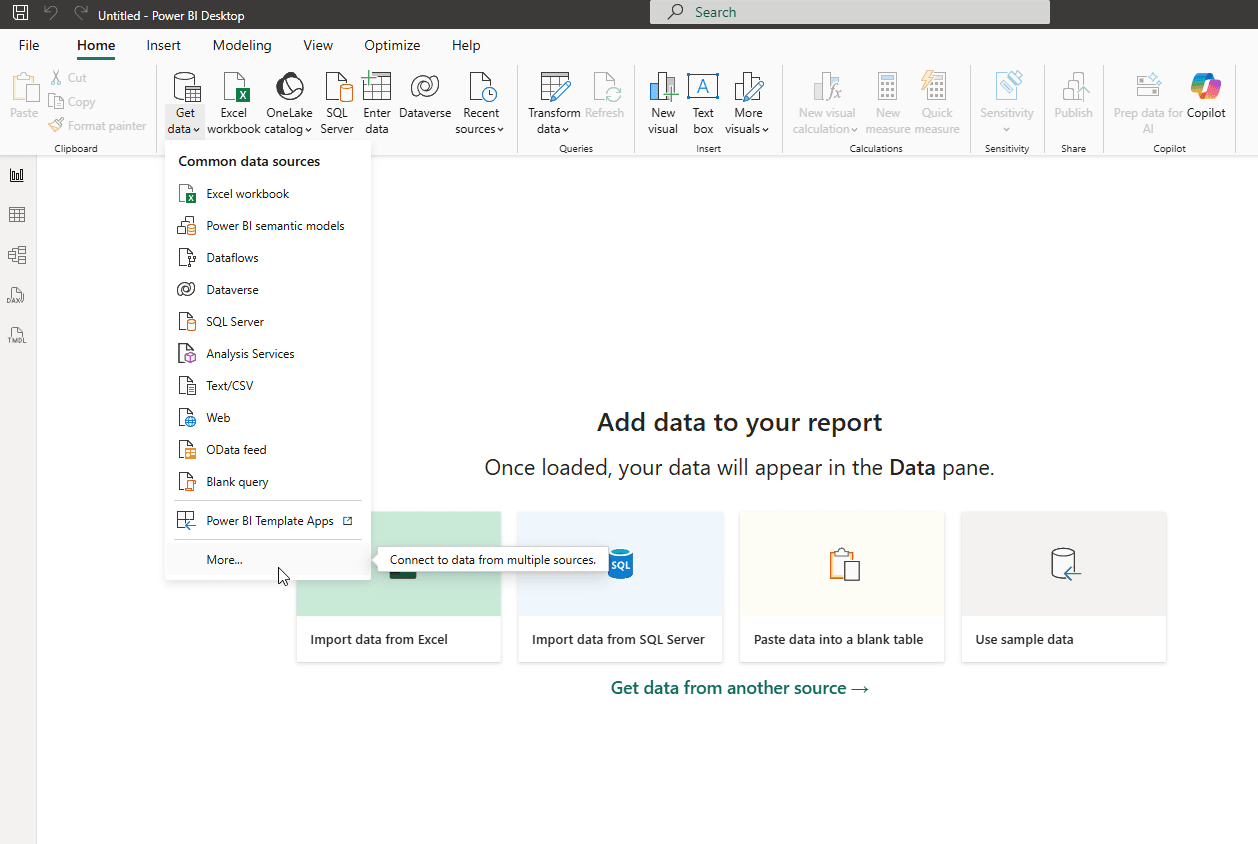 Power BI Desktop navigation path: Get Data -> More... -> *PostgreSQL database**.*
2. Enter Connection Details and Choose Data Connectivity Mode
Provide:
- server (and port if needed),
- database (optional, but recommended for scope control),
- data connectivity mode: Import or DirectQuery. For initial validation, start with a smaller scope and expand after confirming performance.
Server, database, and data connectivity mode fields completed in the connection dialog.
3. Authenticate
Choose the authentication method available in your environment and sign in:
- Database (PostgreSQL username and password),
- Microsoft account (if configured in your environment). Use least-privilege access where possible to reduce governance risk and simplify reviews.
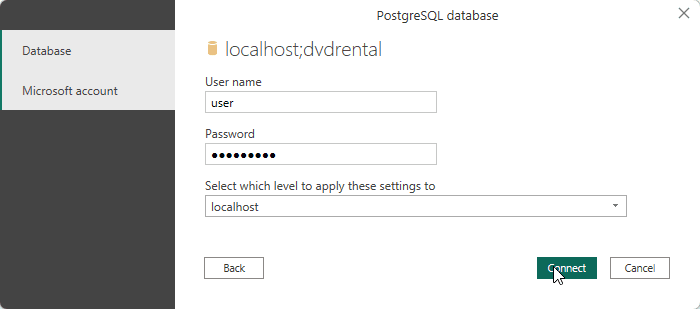 Credentials dialog for PostgreSQL sign-in in Power BI Desktop.
4. Select Tables or Views
In Navigator:
- select only required tables/views,
- preview data quality and column structure,
- click Transform Data when cleanup or normalization is needed before load. Good practice: prefer curated reporting views instead of raw operational tables.
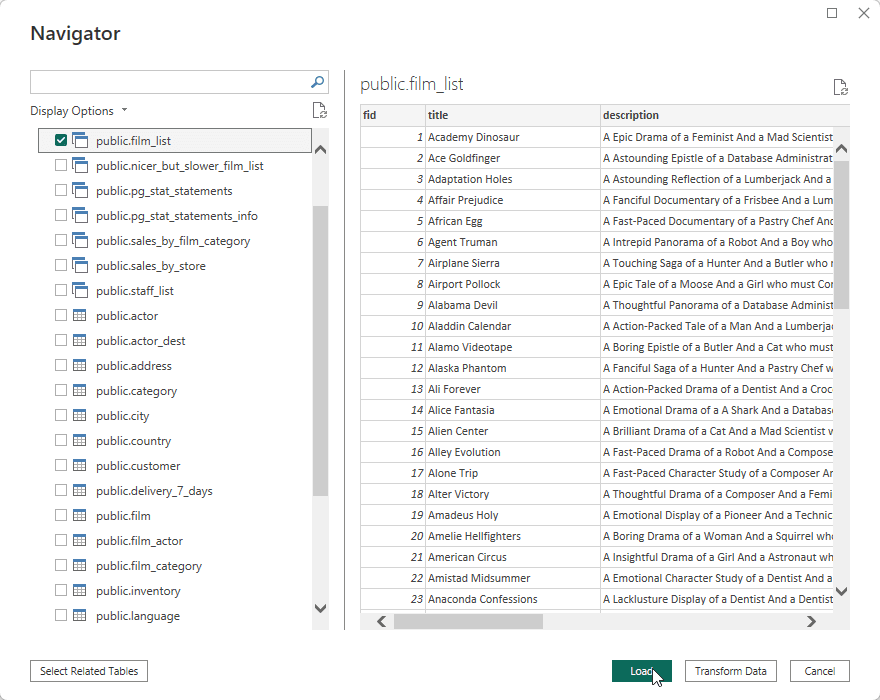 Navigator with selected PostgreSQL objects and data preview.
5. Publish to Power BI Service
Publish from Power BI Desktop to the right Workspace.
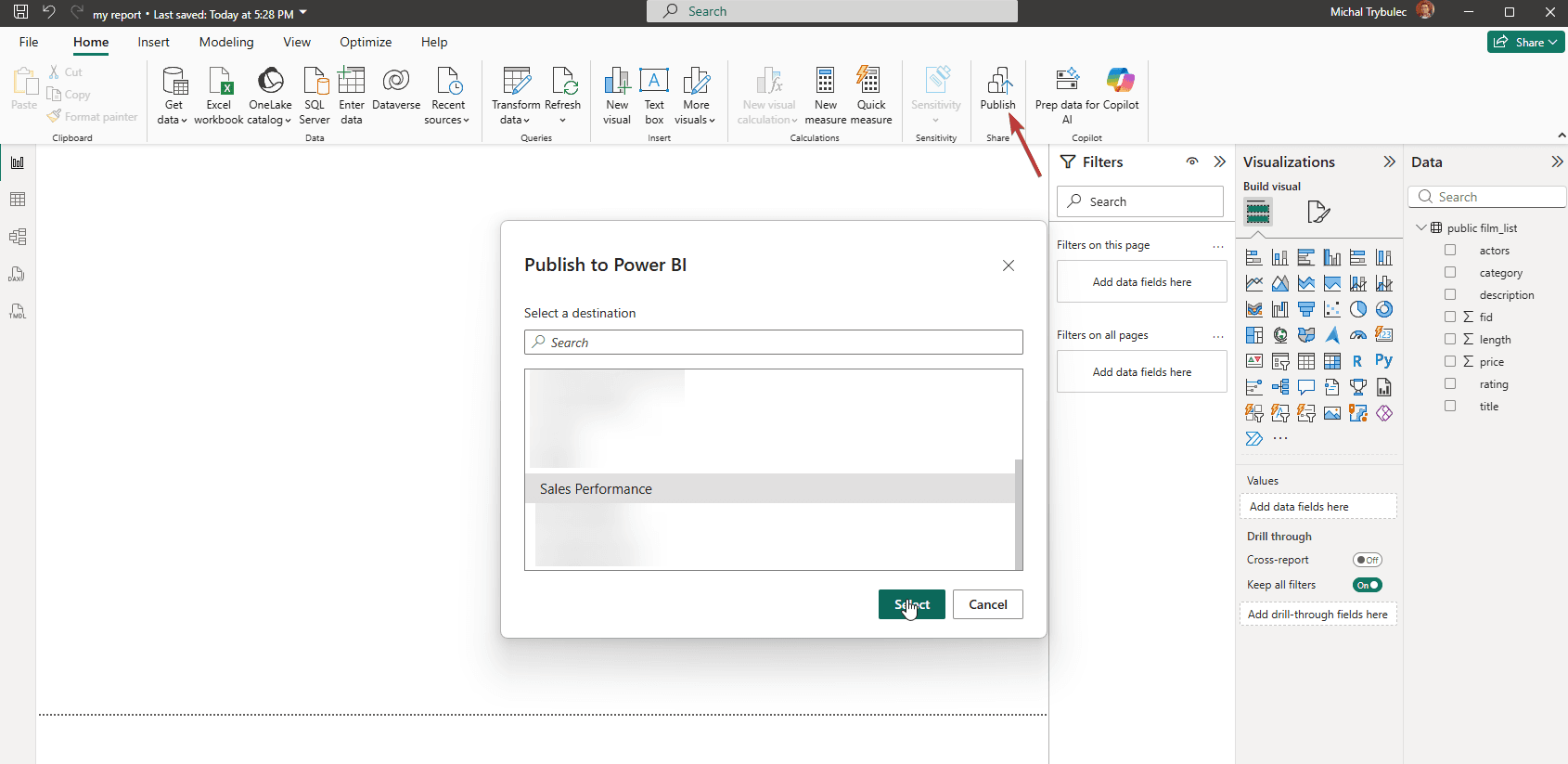 Publishing a report and semantic model from Power BI Desktop to a selected workspace.
Performance Optimization for PostgreSQL Power BI Connections
Best Practices
Performance tuning for PostgreSQL in Power BI should focus on consistency, not only peak speed. The most reliable setups are the ones that keep refresh windows predictable, dashboard interactions responsive, and source-database load under control during business hours.
- Model design is usually the highest-impact place to start. A star schema with clear fact and dimension boundaries, limited high-cardinality attributes, and only necessary columns will typically reduce model size and improve both refresh and query performance.
- PostgreSQL should handle heavy transformation logic whenever possible. In practice, moving filters, joins, and aggregations into SQL or curated views is often more efficient than applying those operations late in Power Query, especially when datasets grow.
- Database tuning also needs to match BI usage patterns. Join keys, filter columns, and incremental-refresh predicates should be indexed deliberately, and larger environments benefit from date-based partitioning or pre-aggregated reporting structures.
- When you diagnose slow pages, always correlate telemetry from both layers. Capture slow visuals in Power BI Performance Analyzer, then validate the generated SQL in PostgreSQL using pg_stat_statements, slow query logs, and EXPLAIN plans to isolate the true bottleneck.
Troubleshooting PostgreSQL Power BI Connection Issues
Common Causes
Most connection failures come from infrastructure or configuration mismatches rather than the connector itself. Typical examples include invalid host/port values, DNS or firewall issues, insufficient schema/table permissions, and SSL or authentication settings that are inconsistent between Power BI and PostgreSQL.
In service-based scenarios, errors are also frequently caused by incorrect gateway mapping in Power BI Service or by source-side timeouts when concurrent workload on PostgreSQL is high.
Diagnostic Checklist
- Verify connectivity to PostgreSQL outside Power BI.
- Re-check credentials, selected authentication method, and SSL settings.
- Validate access with a single table and a minimal model.
- Confirm gateway status and mapped data source in Power BI Service.
- Inspect PostgreSQL logs or pg_stat_statements for failed/slow queries.
- Reduce query complexity, then retest and compare timings.
How Dataedo Helps with PostgreSQL -> Power BI Integration
- Document PostgreSQL Schemas and Objects - Dataedo imports schemas, tables, views, columns, keys, and relationships so your technical foundation is documented from day one.
- Business Glossary for Consistent KPI Definitions - Link business terms to PostgreSQL objects and Power BI fields to keep KPI definitions consistent across teams.
- End-to-End Lineage from Source to Report - Visualize lineage from PostgreSQL objects through transformation layers to Power BI semantic models and reports.
- Governance, Ownership, and Stewardship - Assign owners and stewards to critical assets so changes are reviewed by the right people before release.
- Impact Analysis Before Changes - Before renaming a column or changing transformation logic, assess downstream impact across BI models and reports.
From Connection to Trusted Analytics
Connecting PostgreSQL to Power BI is only step one.
To scale safely, you also need documentation, lineage, ownership, and impact analysis across the full path from source to dashboard.
See how Dataedo helps teams document PostgreSQL and Power BI in one governed catalog. Book a short demo or start a free trial to build trusted, traceable analytics.